How To Make Ringtone For iPhone With Garageband
Creating a custom ringtone for your iPhone has never been easier, thanks to GarageBand. This powerful app allows you to craft a unique ringtone directly on your device without the need for a computer or additional software. Whether you want to use your favorite song, a sound effect, or something original, GarageBand provides the tools you need to personalize your iPhone experience. In this tutorial, we’ll walk you through the steps to create your custom ringtone and set it up on your device.
Video Tutorial
Why You Might Be Looking for This Tutorial
Many iPhone users feel the need to personalize their devices, and creating custom ringtones is one of the simplest yet effective ways to do so. By following this tutorial, you can learn how to:
- Add a personal touch to your iPhone
- Use GarageBand, a powerful tool that comes pre-installed on most Apple devices
- Create a ringtone without needing a computer or buying ringtones from the store
- Explore your creativity by using your favorite songs or sounds
Steps to Create a Custom Ringtone Using GarageBand
- Open GarageBand: Launch the GarageBand app on your iPhone. If you don’t have it on your device, you can download it for free from the App Store.
- Create a New Project: Tap on the ‘+’ icon to start a new project, and select ‘Audio’ for your new track.
- Import Music: To add a song, tap on the loop icon, select ‘Files’, and import the song from your library. You can also use the ‘Apple Loops’ if you prefer to select a built-in sound.
- Edit the Track: Once you have your song, you can trim it to the desired length (up to 30 seconds for ringtones) by dragging the ends of the audio clip. You can also apply effects and filters to enhance the sound.
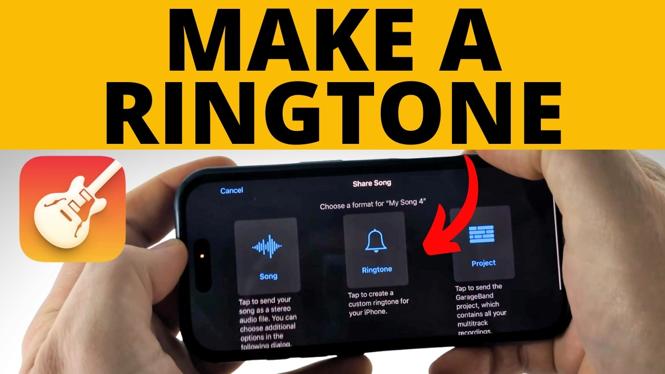
- Export as Ringtone: Tap on the down arrow in the top left corner, select ‘My Songs’, then tap and hold your project. Choose ‘Share’, and then select ‘Ringtone’. Give your ringtone a name and tap ‘Export’.
- Set Your Ringtone: After exporting, you will be given the option to use it as your standard ringtone, text tone, or assign it to a contact. Choose your preferred option to set your new ringtone.
Conclusion
Making a custom ringtone for your iPhone using GarageBand is a straightforward and fun process. With just a few steps, you can turn any song or sound into a personal ringtone. This not only enhances your device’s customization but also allows you to express your unique style. Now that you know how to create and set your ringtone, go ahead and make your iPhone truly yours!
More iPhone Tips & Tutorials:
 Subscribe Now! 🙂

Discover more from Gauging Gadgets
Subscribe to get the latest posts sent to your email.