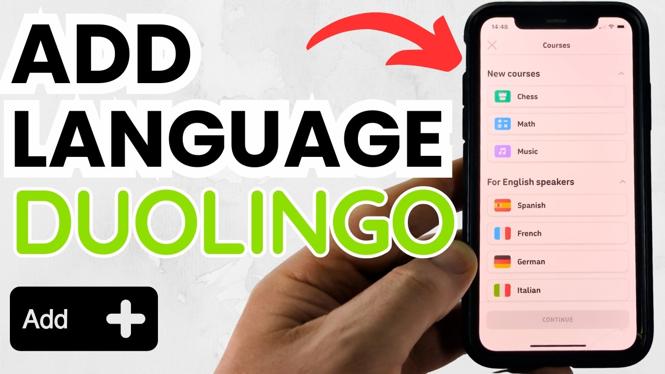
How to Add Language Course in Duolingo
Adding a new language course in Duolingo is an essential step for anyone looking to expand their linguistic skills. Whether you are a beginner or someone looking to reinforce your existing knowledge, Duolingo offers a user-friendly platform to learn over thirty different languages. In this article, we will guide you through the process of adding a language course on Duolingo, whether you are using the latest smartphones or the web version. Follow our step-by-step guide to get started on your language learning journey today.
Video Tutorial
Why You Might Be Looking for This Tutorial
As language learning becomes increasingly popular, many users turn to Duolingo for its free, effective, and engaging approach. You might be looking for this tutorial if:
- You are new to the Duolingo platform and need guidance on how to add courses.
- You want to learn multiple languages and want to know how to switch between them.
- You are using a different device or operating system and need tailored instructions.
- You are seeking updated information for the current year (2026) regarding the latest app features.
Steps to Add a Language Course in Duolingo
Here are the steps you need to follow to successfully add a language course in Duolingo:
1. Open the Duolingo App or Website
Begin by launching the Duolingo application on your iPhone, Samsung Galaxy, or any Android device. Alternatively, you can access the Duolingo website on your computer.
2. Log into Your Account
If you aren’t already logged in, enter your credentials to access your account. If you don’t have an account yet, you will need to create one first.
3. Navigate to the Settings
In the app, locate the profile icon, usually in the bottom right corner. Tap on it and then select the ‘Settings’ option. On the website, click on your profile at the top right and select ‘Settings’ from the dropdown menu.
4. Select ‘Add a Course’
Within the settings menu, look for the option labeled ‘Add a Course’ or ‘Language’. This is where you can manage your current language courses and add new ones.
5. Choose Your Language
You will be presented with a list of available languages. Scroll through the options and select the language you want to add, such as Spanish, French, or Japanese.
6. Confirm Your Selection
Once you’ve selected the language, confirm your choice. The app will begin setting up your new course.
7. Start Learning
With the course added, you can now navigate back to the home screen and start your learning process. Duolingo will provide personalized lessons based on your selected language.
Conclusion
Adding a language course in Duolingo is a straightforward process that opens up a world of learning opportunities. By following these steps, you can effortlessly expand your language skills. Whether you want to travel to a new country, expand your career prospects, or simply engage with different cultures, Duolingo makes language learning accessible and enjoyable. Start your journey today!
More Duolingo Tips & Tutorials:
 Subscribe Now! 🙂

Discover more from Gauging Gadgets
Subscribe to get the latest posts sent to your email.