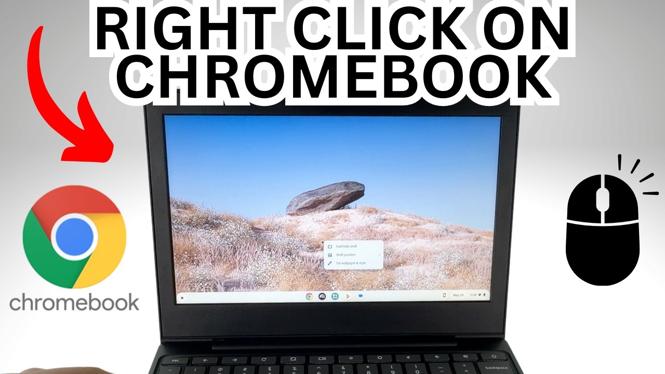
How to Right Click on Chromebook
If you are new to using a Chromebook, you may find that some basic functions are not as straightforward as they are on other operating systems. One key feature that users often struggle with is right clicking. Unlike traditional laptops, Chromebooks have a different way to access context menus, which can be confusing. In this tutorial, we will explore two easy methods to right click on a Chromebook, enabling you to access options such as copy, paste, and inspect elements effortlessly. With these techniques, you can navigate your Chromebook like a pro, making your 2026 computing experience much smoother.
Video Tutorial
Why You Might Be Looking for This Tutorial
Many users turn to this tutorial for several reasons. If you’ve recently switched from another operating system or are using a Chromebook for the first time, you might be finding it challenging to perform tasks you previously completed with ease. Right clicking is an essential action for accessing additional options, and knowing how to do it on a Chromebook can significantly improve your workflow. Additionally, as you become more familiar with the features of your Chromebook, enhanced navigation skills will help you utilize the device to its full potential.
How to Right Click on Chromebook
There are two primary methods to right click on your Chromebook: using the trackpad and utilizing a keyboard shortcut. Below, we’ll discuss each method in detail.
Method 1: Right Click with the Trackpad
- Two-Finger Tap: The easiest way to right click on a Chromebook is by tapping your trackpad with two fingers simultaneously. This will bring up the context menu just as a traditional right click would.
- One-Finger Click and Hold: Another way to right click is to click on the trackpad with one finger and then hold it down for a second or two. This will also trigger the context menu.
Method 2: Right Click with a Keyboard Shortcut
- Using the Alt Key: If you prefer to use the keyboard, you can right click by holding down the Alt key while clicking the trackpad with one finger. This will perform the right-click function.
- Keyboard Actions: If you’re using an external mouse, you can simply use the right mouse button to achieve the same result as right clicking on the trackpad.
By mastering these techniques, you’ll find that getting around your Chromebook becomes much more intuitive. Remember that practice makes perfect; with time, right clicking will become a natural part of your computing habits.
Conclusion
Knowing how to right click on your Chromebook is a crucial skill for any user. With these two simple methods—using the trackpad or a keyboard shortcut—you can easily access context menus and maximize your Chromebook experience. Whether you are a new user or just looking to improve your skills, this tutorial has provided you with the tools and confidence you need to navigate your device effectively.
More Chromebook Tutorials:
 Subscribe Now! 🙂

Discover more from Gauging Gadgets
Subscribe to get the latest posts sent to your email.