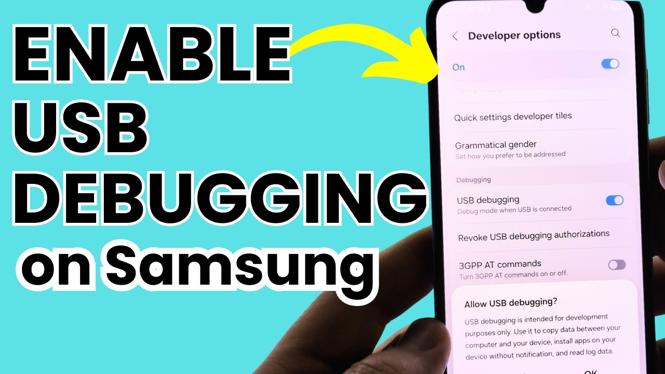
How to Enable USB Debugging on Samsung Phone
Enabling USB debugging on your Samsung phone is an essential skill for anyone looking to enhance their smartphone experience. Whether you are a developer seeking to test apps, or simply someone who wants to perform advanced troubleshooting, enabling USB debugging can unlock a myriad of functionalities. This tutorial provides a step-by-step guide specifically for Samsung Galaxy S25, S24, A series, Z Flip, Z Fold, and all other Samsung models running Android, making it easy for you to connect your device to a computer for various purposes such as file transfers and app development. Read on to learn how to turn on USB debugging mode efficiently.
Video Tutorial
Why You Might Be Looking for This Tutorial
There are several reasons why you might want to enable USB debugging on your Samsung phone. Here are some of the most common scenarios:
- File Transfer: Enable USB debugging to facilitate easier file transfers between your phone and computer.
- App Development: If you are a developer, debugging apps directly on your device is crucial for testing functionality and performance.
- Troubleshooting: USB debugging allows for advanced troubleshooting options when you encounter issues with your device.
- Rooting or Custom ROMs: Enabling USB debugging is often the first step if you plan on rooting your device or installing custom ROMs.
Steps to Enable USB Debugging on Samsung Phone
Follow these simple steps to enable USB debugging on your Samsung phone:
- Open Settings: Unlock your Samsung phone and navigate to the Settings app.
- About Phone: Scroll down and select About phone.
- Software Information: Tap on Software information to access additional details about your device.
- Build Number: Locate the Build number section and tap it seven times rapidly. You will see a message confirming that Developer Options have been enabled.
- Go Back to Settings: Return to the main Settings menu.
- Developer Options: Now, select Developer options from the list.
- Enable USB Debugging: Scroll down until you find the USB debugging option and toggle it on.
- Confirm: A confirmation dialog will appear. Read it carefully, and if you agree, tap OK to enable USB debugging.
With USB debugging enabled, your Samsung phone is now ready for advanced functions. Whether for development, troubleshooting, or simply transferring files, you can take full advantage of what your device has to offer.
Conclusion
Enabling USB debugging on your Samsung phone is a straightforward process that opens up a world of possibilities. Once you have followed this guide, you will be equipped to enhance your smartphone experience and address complex technical tasks with ease. For further assistance, don’t hesitate to refer back to the video tutorial or reach out for additional support.
More Samsung Phone Tips & Tutorials:
 Subscribe Now! 🙂

Discover more from Gauging Gadgets
Subscribe to get the latest posts sent to your email.