How to Turn Off Green Dot On iPhone
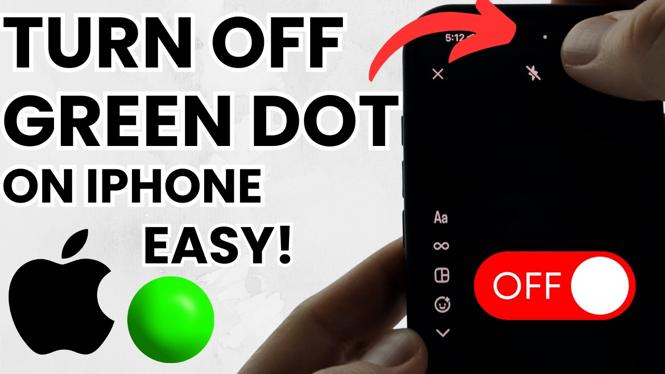
The green dot indicator on your iPhone can be a source of confusion for many users. This small icon appears at the top of your screen, signaling that an application is using your camera. While it is a critical feature for privacy, you might find it distracting or simply want an understanding of how to manage it. In this blog post, we’ll explore the steps to turn off the green dot on your iPhone, giving you better control over your privacy settings.
Video Tutorial
Why You Might Be Looking for This Tutorial
There are several reasons why you may want to turn off the green dot on your iPhone. Primarily, it serves as a privacy feature, indicating that an app is actively using your camera. If you notice the green dot appearing unexpectedly, it could indicate that a background app is accessing your camera without your explicit consent. This could lead to concerns about your privacy and security.
Additionally, users may simply want to limit the distractions on their screen while using their device. The green dot, by its mere presence, can be a source of annoyance if it constantly appears during normal phone usage.
Steps to Turn Off the Green Dot on Your iPhone
- Open the Settings App: Locate and tap on the “Settings” app icon on your iPhone’s home screen.
- Go to Privacy: Scroll down and select “Privacy” from the list of options.
- Select Camera: Within the Privacy section, tap on “Camera.” This will show you all the apps that have requested access to your camera.
- Manage Camera Access: Review the list of apps and disable camera access for any applications that you do not want to use your camera. Simply toggle the switch next to the app to the off position.
- Check Background App Refresh: If you still notice the green dot, it could be due to background app activity. Go to “Settings,” then “General,” and select “Background App Refresh.” You can choose to turn it off or selectively disable it for specific apps.
- Restart Your Device: To ensure changes have taken effect, restart your iPhone after making the changes.
By following these steps, you can effectively manage your camera permissions and reduce unexpected appearances of the green dot indicator on your iPhone.
Final Thoughts
Being aware of the green dot feature on your iPhone is essential for maintaining your privacy. While it serves an important function, knowing how to control and customize its settings can enhance your user experience. Take the time to review your app permissions and ensure you’re comfortable with the privacy settings on your device. If you have any questions, be sure to check the video tutorial provided for a visual demonstration of the steps.
More iPhone Tutorials:
 Subscribe Now! 🙂

Discover more from Gauging Gadgets
Subscribe to get the latest posts sent to your email.