How to Unpublish Facebook Page on iPhone, Android, & Samsung
Managing a Facebook page can sometimes require you to take a step back. Whether you’re looking to redesign your page, take a break from content creation, or restructure your brand’s online presence, unpublishing your Facebook page is a straightforward solution. In this tutorial, we’ll guide you through the steps needed to unpublish your Facebook page using your mobile device. This guide is tailored for users on iPhone, Android, and Samsung devices in 2026, ensuring that you can easily follow along no matter your platform.
Video Tutorial
Why You Might Be Looking for This Tutorial
There are various reasons why a user might want to unpublish their Facebook page. Perhaps you’re in the midst of a rebranding effort and need a temporary pause to update your visuals and messaging. You may also be considering a break from social media to focus on other projects or personal matters. Unpublishing a page allows you to hide it from public view without permanently deleting it. This way, you can retain your followers and content while making necessary adjustments behind the scenes.
Steps to Unpublish Your Facebook Page
On iPhone
- Open the Facebook app on your iPhone.
- Navigate to your Facebook page by tapping the menu icon and selecting your page from the list.
- Tap on the settings icon at the top right corner of the page.
- Scroll down until you find the “General” section and select it.
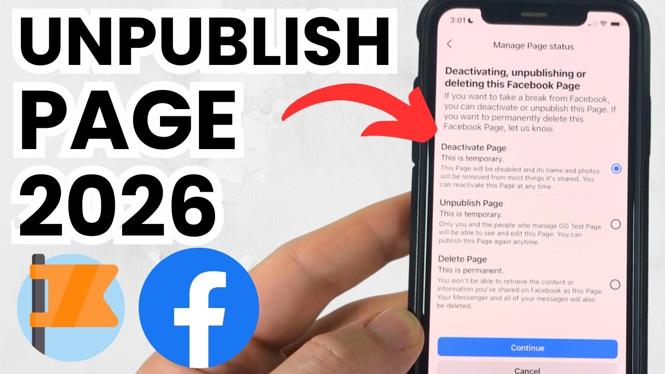
- Locate the “Page Visibility” option and switch it to “Page unpublished.”
- Confirm your choice to unpublish the page.
On Android
- Launch the Facebook app on your Android device.
- Access your page by tapping the menu icon and selecting your page.
- Tap on the settings icon located in the top right corner.
- Scroll to find the “General” tab and tap on it.
- Select “Page Visibility” and change the setting to “Page unpublished.”
- Confirm to unpublish your page.
On Samsung
- Open the Facebook app on your Samsung device.
- Go to your page by tapping the menu and selecting your page.
- Tap the settings icon in the top right corner.
- Scroll down to find “General” and tap on it.
- Under “Page Visibility,” select “Page unpublished.”
- Confirm your decision to finalize the unpublishing process.
Conclusion
Unpublishing your Facebook page is a quick and effective way to take control of your online presence. By following the steps outlined above, you can easily hide your page from public view without losing any of your content or followers. Should you decide to make your page visible again in the future, the process is just as easy. For additional guidance, refer to the video tutorial provided above.
More Facebook Tips & Tutorials:
 Subscribe Now! 🙂

Discover more from Gauging Gadgets
Subscribe to get the latest posts sent to your email.