How to CANCEL FUBO TV Subscription
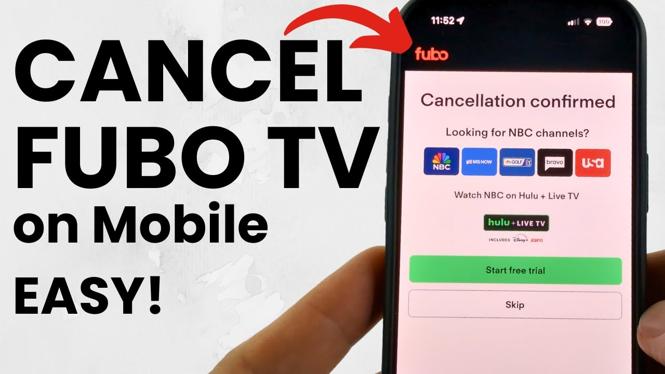
Cancelling your Fubo TV subscription may seem daunting, but it can be a straightforward process. This tutorial will walk you through the steps to cancel your subscription regardless of the device you’re using or how you initially subscribed. Understanding how to cancel Fubo TV is essential if you are looking to avoid future charges or switch to a different service. Follow the guide below to learn how to cancel your subscription quickly and efficiently.
Video Tutorial
Why You Might Be Looking for This Tutorial
There are various reasons why you might want to cancel your Fubo TV subscription. Perhaps you have decided to switch to a different streaming service that better suits your preferences, or maybe you’re looking to save some money and reduce monthly expenses. Regardless of the reason, knowing how to navigate the cancellation process can help you avoid any unnecessary charges and streamline your transition. This guide is designed to provide you with all the steps you need to take, making the cancellation process as smooth as possible.
How to Cancel Your Fubo TV Subscription
Step 1: Determine How You Subscribed
Before you can cancel your subscription, it’s crucial to know how you signed up for Fubo TV. Did you use the Fubo website, App Store, or Google Play Store? This will dictate which cancellation method you’ll need to follow.
Step 2: Canceling Through the Fubo Website
- Log in to your Fubo TV account on the website.
- Click on your profile icon in the upper-right corner.
- Select ‘Settings’ from the dropdown menu.
- Navigate to the ‘Subscription’ tab and click ‘Cancel Subscription.’
- Follow the prompts to confirm your cancellation.
Step 3: Canceling on iPhone
- Open the ‘Settings’ app on your iPhone.
- Tap your name at the top of the screen, then select ‘Subscriptions.’
- Find and select ‘Fubo TV’ from your list of subscriptions.
- Tap ‘Cancel Subscription’ and confirm your choice.
Step 4: Canceling on Android
- Open the ‘Google Play Store’ app.
- Tap on the menu icon and select ‘Subscriptions.’
- Choose ‘Fubo TV’ from the list.
- Tap ‘Cancel Subscription’ and follow the prompts to confirm.
Step 5: Canceling on Samsung Galaxy
- Open the ‘Galaxy Store’ app on your device.
- Go to ‘Menu’ and select ‘Subscriptions.’
- Locate ‘Fubo TV’ and select it.
- Tap ‘Cancel Subscription’ and confirm your decision.
Step 6: Check for Confirmation
After you have followed the appropriate steps, make sure to check your email for a cancellation confirmation. This will help ensure that you won’t be billed for another month of service.
Conclusion
Cancelling your Fubo TV subscription is a hassle-free process when you know the right steps to take. By following this guide, you can easily navigate the cancellation on any device. Whether you’re switching services or just looking to cut costs, you can stop your Fubo subscription and avoid future charges quickly.
More Cancel Subscriptions Tutorials:
 Subscribe Now! 🙂

Discover more from Gauging Gadgets
Subscribe to get the latest posts sent to your email.