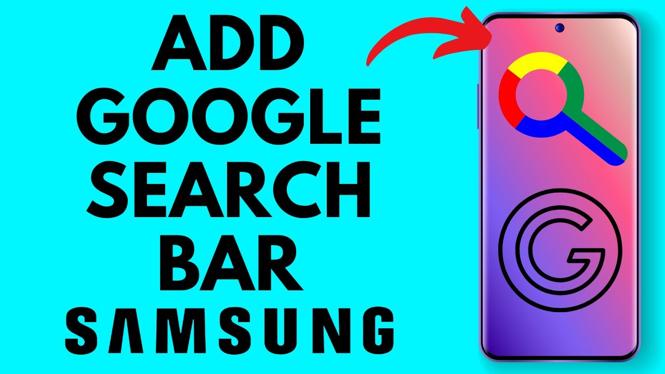
How to Add Google Search Bar on Samsung Home Screen
If you’re a Samsung Galaxy phone user, having quick access to Google search directly from your home screen can enhance your productivity and streamline your daily tasks. Instead of opening a browser or an app every time you want to search for something online, you can simply add the Google Search widget right on your home screen. This not only makes searching easier but also allows you to access information and services quickly. In this tutorial, we will guide you through the steps to add the Google Search Bar to your Samsung Home Screen effortlessly.
Video Tutorial
Why You Might Be Looking for This Tutorial
There are several reasons you might want to add the Google Search bar to your Samsung Home Screen:
- Convenience: With the search bar on your home screen, you can search the web without the need to open a browser or additional applications.
- Speed: Directly accessing Google search can save you valuable time, especially if you’re frequently looking for information online.
- Customization: Personalizing your home screen with widgets helps create a smartphone experience that reflects your needs.
- User Experience: The Google Search widget is intuitive and enhances your overall usage and navigation on your device.
Steps to Add Google Search Bar on Samsung Home Screen
- Unlock Your Samsung Galaxy Phone: Start by unlocking your device to access the home screen.
- Long Press on Home Screen: Tap and hold on any blank space on your home screen until the options menu appears.
- Select ‘Widgets’: From the menu, tap on the ‘Widgets’ option to browse the available widgets on your device.
- Find Google Search Widget: Scroll through the widget list until you find the ‘Google’ section. Look for the ‘Google Search’ widget.
- Drag the Widget to Your Home Screen: Tap and hold the ‘Google Search’ widget, then drag it to your desired location on the home screen. Release to place it.
- Resize if Necessary: You can adjust the size of the widget by dragging the edges if needed for a better fit.
- Start Using: Tap on the Google Search widget to initiate a search directly from your home screen.
Following these straightforward steps will allow you to have the Google Search bar ready at your fingertips, making your smartphone experience much more efficient. Now you can enjoy quick searches without any hassle, right from your home screen.
More Samsung Phone Tips & Tutorials:
 Subscribe Now! 🙂

Discover more from Gauging Gadgets
Subscribe to get the latest posts sent to your email.