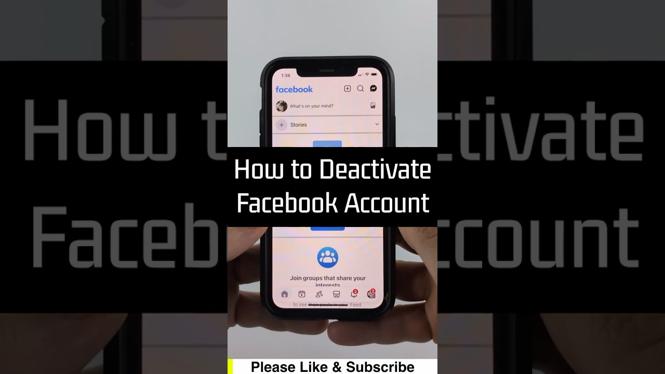
How to Deactivate Facebook Account
Deactivating your Facebook account allows you to take a break without permanently losing your profile. This guide shows you how to temporarily deactivate your account on iPhone, Android, and desktop.
Video Tutorial
Watch the full walkthrough above, or keep reading for the written steps.
Why You Might Need This
There are plenty of reasons to take a break from Facebook. Perhaps you want to reduce distractions or focus on other activities. Deactivating your account can help you step away without the pressure of permanent deletion.
This process hides your profile from others, stops notifications, and allows you to return whenever you want. It’s a good option if you’re feeling overwhelmed but still want to keep your data safe.
Step-by-Step Guide
On Desktop
- Log into your Facebook account.
- Click on the down arrow in the top right corner.
- Select “Settings & Privacy,” then click “Settings.”
- In the left column, click on “Your Facebook Information.”
- Click on “Deactivation and Deletion.”
- Select “Deactivate Account,” then click “Continue to Account Deactivation.”
- Follow the prompts to confirm your decision.
On iPhone
- Open the Facebook app and tap on the three horizontal lines in the bottom right corner.
- Scroll down and tap on “Settings & Privacy,” then tap “Settings.”
- Under “Your Information,” select “Account Ownership and Control.”
- Tap on “Deactivation and Deletion.”
- Select “Deactivate Account,” then tap “Continue to Account Deactivation.”
- Follow the on-screen instructions to confirm.
On Android
- Open the Facebook app and tap on the three horizontal lines in the top right corner.
- Scroll down and tap on “Settings & Privacy,” then tap “Settings.”
- Under “Your Information,” select “Account Ownership and Control.”
- Tap on “Deactivation and Deletion.”
- Select “Deactivate Account,” then tap “Continue to Account Deactivation.”
- Follow the steps to finalize the deactivation.
Conclusion
You learned how to deactivate your Facebook account on desktop and mobile devices. This process helps you take a break while keeping your information safe. Check out related tutorials on our channel for more helpful tips.
More Facebook Tips & Tutorials:
 Subscribe Now! 🙂

Discover more from Gauging Gadgets
Subscribe to get the latest posts sent to your email.