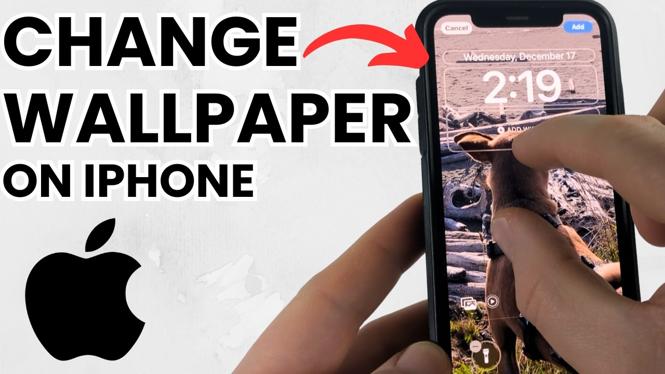
How to Change iPhone Wallpaper: A Complete Guide
Changing the wallpaper on your iPhone is an excellent way to personalize your device, express your style, and make your Home Screen and Lock Screen more enjoyable to look at. This simple task can significantly enhance your phone’s aesthetic appeal and can be done quickly and easily, whether you prefer to use the Settings app or directly from your Photos. In this tutorial, we will guide you through the steps needed to set a new wallpaper on your iPhone.
Video Tutorial
Why You Might Be Looking for This Tutorial
There are several reasons you might want to change your iPhone wallpaper:
- Personalization: Customizing your phone gives you a sense of ownership and allows you to express your personality.
- Fresh Look: Updating your wallpaper can refresh the overall look of your device and avoid monotony.
- Highlight Memories: Using a personal photo as your wallpaper can keep cherished memories front and center.
- Seasonal Change: Many users like to change their wallpaper according to seasons or holidays.
Steps to Change Your iPhone Wallpaper
Follow these steps to customize your iPhone wallpaper easily:
Method 1: Using the Settings App
- Open the Settings app on your iPhone.
- Scroll down and tap on Wallpaper.
- Tap Choose a New Wallpaper.
- Browse through your available options, including Dynamic, Stills, and Live wallpapers provided by Apple, or select an image from your Photos.
- Once you find an image you like, tap on it.
- Adjust the wallpaper’s position and scale if necessary, then choose whether to set it as your Lock Screen, Home Screen, or Both.
- Finally, tap Set to confirm your choice.
Method 2: Using the Photos App
- Open the Photos app on your iPhone.
- Navigate to the image you want to use as your wallpaper.
- Tap the Share icon (a square with an arrow pointing up).
- Scroll down and select Use as Wallpaper.
- Adjust the wallpaper’s position and scale if necessary, then select whether to set it as your Lock Screen, Home Screen, or Both.
- Tap Set to apply your new wallpaper.
Conclusion
Changing your iPhone wallpaper is a quick and enjoyable way to make your device feel more personal and fresh. Whether you choose to use the Settings app or the Photos app, you can customize your iPhone’s look in just a few simple steps. Don’t hesitate to explore various images and styles until you find the perfect wallpaper that reflects your personality!
More iPhone Tutorials:
 Subscribe Now! 🙂

Discover more from Gauging Gadgets
Subscribe to get the latest posts sent to your email.