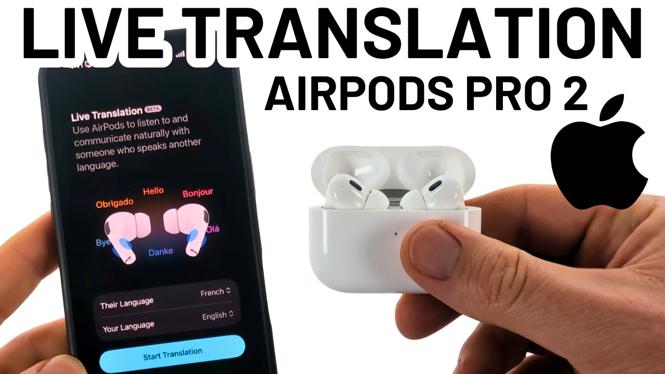
How to Use Live Translation with AirPods Pro 2
In our increasingly globalized world, effective communication across language barriers has become more important than ever. Apple’s AirPods Pro 2 offer a groundbreaking feature known as Live Translation, which allows users to seamlessly communicate in different languages using just their AirPods and an iPhone. Whether you’re traveling, conducting business, or simply looking to connect with friends who speak other languages, this feature can enhance your experience significantly. In this blog post, we will walk through the steps necessary to enable and use Live Translation with your AirPods Pro 2.
Video Tutorial
Why You Might Be Looking for This Tutorial
If you’re looking to bridge communication gaps using your AirPods Pro 2, you may have several reasons for seeking out this tutorial:
- Traveling Abroad: Many people travel to countries where they may not speak the native language. Live Translation can help facilitate conversations without needing a translator.
- Learning New Languages: Users interested in learning new languages can practice conversations in real-time, enhancing their learning experience.
- Business Communication: In a globalized business environment, effective communication with international colleagues is crucial. Live Translation offers a tool for clear dialogues.
- Connecting with Friends: Many users have friends or family who speak different languages, and using this feature can deepen connections and improve understanding.
Steps to Enable and Use Live Translation with AirPods Pro 2
Follow these simple steps to start using Live Translation with your AirPods Pro 2:
- Ensure Compatibility: Make sure your AirPods Pro 2, or any other supported version, are paired with an iPhone that has been updated to the latest iOS version.
- Connect Your AirPods: Open the Bluetooth settings on your iPhone to ensure your AirPods are connected properly. You should see them listed under connected devices.
- Open Live Translation: Go to the “Settings” app on your iPhone, scroll down and select “Translate.” Make sure Live Translation is enabled.
- Select Languages: In the Translate settings, you can download specific languages for offline use. Choose the languages you want your device to support and download them.
- Start a Conversation: Open the Translate app, select your desired languages for translation, and then you’re ready to engage in a conversation. Wear your AirPods Pro 2 and listen as the conversation is translated live.
Additional Tips
To maximize your experience with Live Translation:
- Practice with a friend who speaks the language you’re trying to communicate in.
- Ensure your surrounding environment is quiet to minimize background noise during translations.
- Keep your AirPods charged to avoid interruptions during use.
Live Translation is a powerful tool that can break down language barriers and enhance interpersonal communication. With your AirPods Pro 2 and iPhone, you’ll find that connecting with others becomes easier and more enjoyable. Don’t hesitate to leave a comment if you have any questions or need further assistance on setting this feature up!
More AirPods Tips & Tutorials:
 Subscribe Now! 🙂

Discover more from Gauging Gadgets
Subscribe to get the latest posts sent to your email.