How to Turn OFF Lock Screen Swipe to Open Camera on iPhone
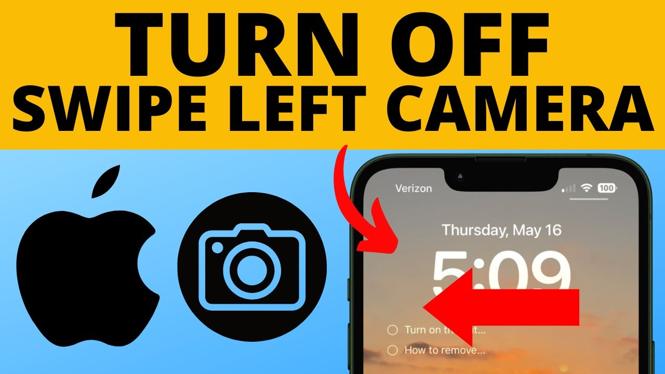
The iPhone’s lock screen is designed to grant quick access to essential features, including the camera. While this can be convenient, many users find that the swipe left gesture to open the camera can lead to accidental activations, causing frustration and unwanted photos. If you’ve experienced this annoyance, you’re not alone. Fortunately, there’s a straightforward way to disable this feature, ensuring that your lock screen remains clutter-free and under your control. In this blog post, we’ll walk you through the steps to turn off the lock screen swipe to open the camera on any iPhone.
Video Tutorial
Why One Might Be Looking for This Tutorial
Many iPhone users prefer to have more control over their devices, especially when it comes to features that can lead to unintended actions. Disabling the camera access from the lock screen can help in the following scenarios:
- Prevent Accidental Photos: Accidentally opening the camera can lead to unwanted pictures, particularly if your phone is in a bag or pocket.
- Enhance Privacy: By limiting access to your camera from the lock screen, you protect your privacy and prevent accidental recordings.
- Reduce Screen Clutter: A simpler lock screen without unnecessary shortcuts can make it easier to use your iPhone quickly and efficiently.
Steps to Turn Off Lock Screen Swipe to Open Camera
- Open Settings: Locate the Settings app on your iPhone’s home screen and tap on it to open.
- Scroll to Camera: In the Settings menu, scroll down until you find the “Camera” option, and select it.
- Disable Access: Look for the option labeled “Access on Lock Screen” and toggle the switch off. This will disable the swipe left gesture to access the camera.
- Confirm Changes: Once toggled off, you can exit the Settings app. Your iPhone’s lock screen will no longer allow access to the camera via swipe left.
By following these simple steps, you can regain control over your iPhone’s lock screen and avoid any accidental camera openings. Now, you can enjoy a cleaner, more organized interface on your device.
More iPhone Tips & Tutorials:
 Subscribe Now! 🙂

Discover more from Gauging Gadgets
Subscribe to get the latest posts sent to your email.