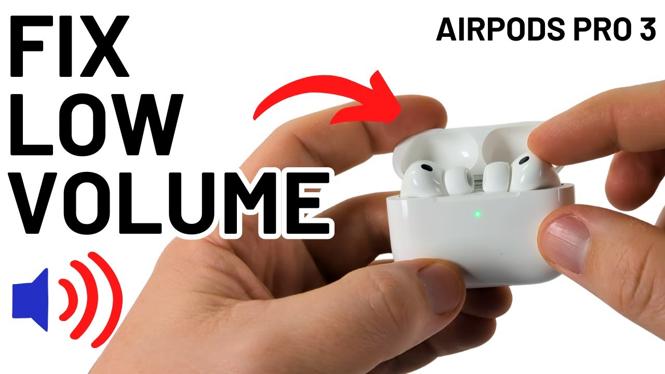
How to Fix Low Volume on AirPods Pro 3
Are you struggling with the volume on your AirPods Pro 3? It can be frustrating when your audio devices don’t deliver the expected sound quality. Many users have reported issues with low volume, which can diminish your listening experience significantly. Fortunately, there are several ways to troubleshoot and fix these problems. In this guide, we will walk you through the steps to ensure you get the most out of your AirPods Pro 3.
Video Tutorial
Why You Might Be Looking for This Tutorial
If you’re in search of a solution for low volume on your AirPods Pro 3, you’re not alone. Many users have faced this issue due to a variety of reasons, including software settings, physical obstructions, or even hardware malfunctions. Understanding how to fix these issues can greatly enhance your audio experience. Some common reasons one might face low volume include:
- Incorrect audio settings on your device.
- Connectivity issues between your AirPods and your device.
- Obstructions or damage to the AirPods themselves.
- Software bugs that may require an update or reset.
Steps to Fix Low Volume on AirPods Pro 3
Step 1: Check Device Volume Settings
Start by checking the volume settings on your device. Make sure the volume is turned up and that the sound isn’t muted. You can do this by adjusting the volume directly on your device or through the control center.
Step 2: Check Balance Settings
Sometimes, the audio balance may be set incorrectly. On your iPhone or iPad, go to Settings > Accessibility > Audio/Visual and ensure that the balance is centered.
Step 3: Clean Your AirPods Pro
Dirt and debris can accumulate in the speakers of your AirPods, affecting sound quality. Use a soft, dry cloth to clean your AirPods Pro, and ensure the microphone and speaker mesh is clear of any obstructions.
Step 4: Disconnect and Reconnect AirPods
Sometimes, simply reconnecting your AirPods can resolve low volume issues. Go to Bluetooth settings on your device, forget the AirPods, and then reconnect them.
Step 5: Update Firmware
Ensure that your AirPods Pro have the latest firmware. Connect them to your device and check for any available updates. Keeping your headphones updated can fix bugs that may lead to low volume issues.
Step 6: Reset Your AirPods Pro
If none of the above steps work, you may need to reset your AirPods Pro. Place them in the charging case, keep the lid open, and hold the setup button on the back of the case until the status light flashes amber, then white. After this, reconnect your AirPods to your device.
Conclusion
Addressing low volume issues on your AirPods Pro 3 doesn’t have to be difficult. By following the steps outlined above, you can troubleshoot and resolve volume issues, allowing you to enjoy your music, podcasts, or calls to the fullest. If problems persist after trying all these solutions, it may be worth reaching out to Apple Support for further assistance.
More AirPods Tips & Tutorials:
 Subscribe Now! 🙂

Discover more from Gauging Gadgets
Subscribe to get the latest posts sent to your email.