How to Add Dual Clock Widget to iPhone Lock Screen
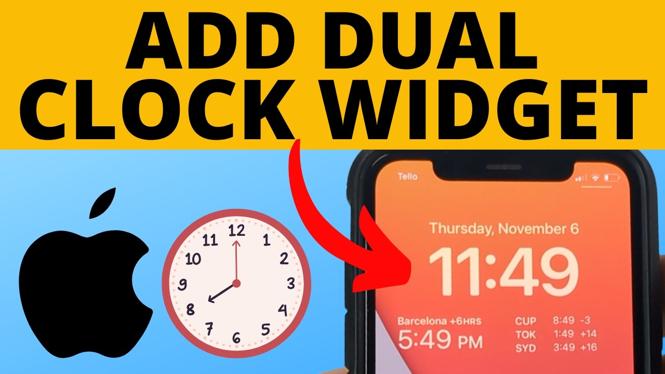
Are you looking to keep track of multiple time zones with ease? Adding a dual clock widget to your iPhone lock screen can enhance your multitasking capabilities, making it easier to stay connected with friends, family, or colleagues in different parts of the world. Whether you are traveling, managing business relationships across different time zones, or simply want to know the time in another city at a glance, this tutorial will guide you through the process of setting up a second clock on your iPhone’s lock screen.
Video Tutorial
Why You Might Be Looking for This Tutorial
Many iPhone users find it challenging to keep track of various time zones, especially if they frequently communicate with people around the globe. The dual clock widget is a practical solution for those who:
- Travel frequently between time zones and want to keep track of local times.
- Work with remote teams across different regions and need to know their local times.
- Have family or friends living abroad and want to stay informed about their schedules.
By following this tutorial, you will learn how to customize your iPhone lock screen to include a dual clock widget that displays the time for another time zone of your choice. Let’s get started!
Step-by-Step Guide to Add Dual Clock Widget
- Unlock your iPhone: Begin by unlocking your iPhone and ensuring you are on the lock screen.
- Enter Edit Mode: Long press on the lock screen background until the options to customize appear. Click on “Customize”.
- Select a Widget Area: Choose a widget area (either above or below the clock) where you want to add the dual clock.
- Add Widget: Tap on the “+” button or “Add Widget” option to access the widget selection menu.
- Choose Clock Widget: Scroll through the available widgets and select the “Clock” widget. You may find various styles, so choose the one that allows for dual time display.
- Configure the Second Time Zone: After adding the widget, tap on it to enter the settings. Select the time zone you wish to display as your second clock.
- Finish Customization: Once you have configured the second time zone, tap “Done” or press the physical “Home” button (if your model has one) to exit customization mode.
- Check the Lock Screen: Lock your iPhone and check your lock screen to ensure that the dual clock widget displays the time correctly.
And there you have it! You have successfully added a dual clock widget to your iPhone lock screen. Now you can easily reference different time zones at a glance, simplifying your daily interactions across multiple regions.
More iPhone Tips & Tutorials:
 Subscribe Now! 🙂

Discover more from Gauging Gadgets
Subscribe to get the latest posts sent to your email.