How to Change Language in Google Photos
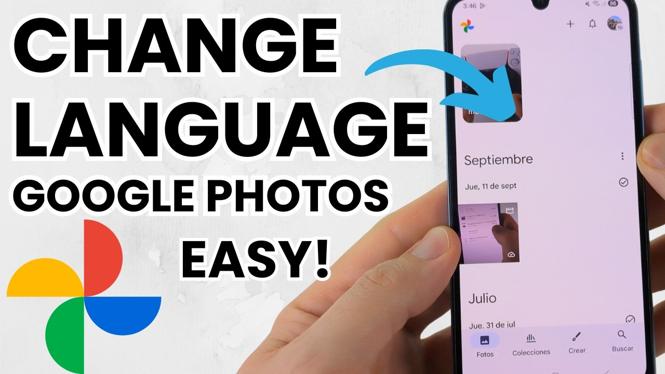
Are you looking to personalize your Google Photos experience by changing the display language? Whether you’re using an iPhone, Android, or Samsung phone, this tutorial will guide you through the steps needed to make the switch. This can be particularly useful if you’re more comfortable with a language other than the default setting, or if you’re trying to help someone else navigate the app in their preferred language. Additionally, we will address common issues that may arise when attempting to change the language in Google Photos.
Video Tutorial
Why You Might Be Looking for This Tutorial
Changing the language setting in Google Photos can enhance usability and improve the overall experience of the app. Here are some reasons you might be seeking this tutorial:
- Familiarity: You may prefer to use the app in a language you are more fluent in.
- Accessibility: Helping friends or family set up their language preferences in Google Photos.
- Troubleshooting: Encountering issues with the app not reflecting your language preference and seeking solutions.
Steps to Change Language in Google Photos
Follow these straightforward steps to change the language in the Google Photos app:
For Android Users:
- Open the Settings app on your Android device.
- Scroll down and tap on Languages & input.
- Select Languages and add or select the desired language.
- Restart the Google Photos app to see the changes take effect.
For iPhone Users:
- Open the Settings app on your iPhone.
- Scroll down and tap on General.
- Select Language & Region.
- Tap Add Language or select your preferred language and set it as the primary language.
- Close and reopen the Google Photos app for the changes to reflect.
For Samsung Users:
- Go to the Settings app on your Samsung device.
- Tap on General Management.
- Select Language and input.
- Tap on Language and choose your preferred language.
- Open the Google Photos app again to see the updated language.
Troubleshooting: Google Photos Not Changing Language
If you have followed the above steps and your language still isn’t changing, try the following:
- Ensure your device’s app settings are correct and that the Google Photos app is updated to the latest version.
- Clear the app’s cache and data: Go to your device’s settings, find Apps, select Google Photos, and tap on Storage to clear cache.
- Reinstall the app to reset any improper settings that may be causing the issue.
By following this tutorial, you should be able to successfully change the language in Google Photos and enjoy a more tailored user experience. If you have any questions or run into issues, feel free to leave a comment.
More Google Photos Tips & Tutorials:
 Subscribe Now! 🙂

Discover more from Gauging Gadgets
Subscribe to get the latest posts sent to your email.