How to See Blocked Account List on Snapchat
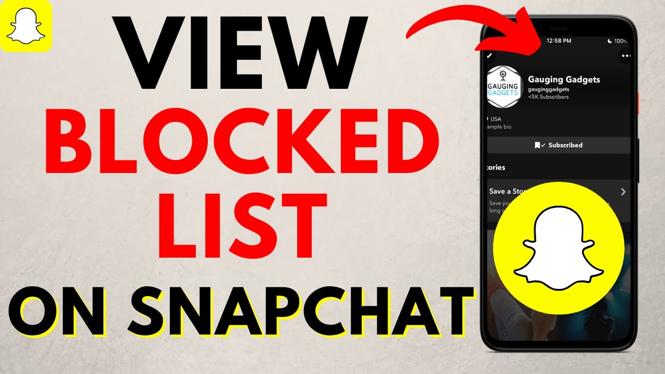
Managing your social media accounts effectively is crucial for maintaining your privacy and ensuring a positive online experience. One of the essential features offered by Snapchat is the ability to block users. However, over time, you might forget who you’ve blocked or want to make changes to your blocked account list. This tutorial will guide you through the steps to view all the accounts you’ve blocked on Snapchat, empowering you to manage your Snapchat interactions effectively and enhance your privacy settings.
Video Tutorial
Why You Might Be Looking for This Tutorial
There are several reasons you might want to view your blocked account list on Snapchat:
- Review Blocked Accounts: You may want to revisit why certain users were blocked in the first place.
- Unblock Users: Sometimes friendships or relationships change, and you may wish to unblock someone who was previously blocked.
- Enhance Privacy: Keeping track of your blocked accounts helps ensure your Snapchat experience remains safe and tailored to your preferences.
Steps to See Blocked Account List on Snapchat
To view your blocked accounts on Snapchat, follow these straightforward steps:
- Open Snapchat: Launch the Snapchat application on your mobile device.
- Access Your Profile: Tap on your Bitmoji or profile icon located at the top left corner of the screen.
- Navigate to Settings: Tap on the gear icon in the top right corner to enter the Settings menu.
- Find Blocked Accounts: Scroll down until you find the “Blocked” section. Tap on it to view the list of users you’ve blocked.
- Manage Your Blocked Accounts: Here, you can see all the accounts you’ve blocked. If you decide to unblock someone, simply tap the “X” next to their username.
By following these steps, you can easily manage your blocked users and take control of your Snapchat settings. Regularly reviewing your blocked list can contribute to a more enjoyable social media experience, ensuring that you only engage with people you want to connect with.
More Snapchat Tips & Tutorials:
 Subscribe Now! 🙂

Discover more from Gauging Gadgets
Subscribe to get the latest posts sent to your email.