How to Enable Voice Typing on Samsung Keyboard
If you’re a Samsung Galaxy phone or tablet user, you might find yourself searching for ways to speed up your text input. Voice typing is an efficient solution that allows you to dictate messages, notes, and emails, making the process significantly quicker and hands-free. In this blog post, we will guide you through the steps to enable voice typing on your Samsung Keyboard, allowing you to enhance your typing experience.
Video Tutorial
Why You Might Be Looking for This Tutorial
With the escalating pace of life, typing lengthy messages can be time-consuming and cumbersome. Voice typing eliminates the need to rely solely on your keyboard, providing a more natural way to communicate. Whether you’re sending a text message, drafting an email, or jotting down notes, voice typing can significantly improve your productivity. Additionally, this feature is particularly useful for individuals with limited mobility or those who simply prefer speaking over typing. By learning how to enable voice typing on your Samsung Keyboard, you will unlock a new level of convenience on your device.
Steps to Enable Voice Typing on Samsung Keyboard
- Open Settings: Start by navigating to the Settings app on your Samsung device. You can find it in your app drawer or tap on the gear icon in your notification panel.
- Go to General Management: Scroll down and select the “General management” option to access your language and input settings.
- Select Language and Input: Tap on “Language and input” to manage your keyboard settings.
- Choose On-screen Keyboard: Under the “Keyboard list and default” section, select “On-screen keyboard,” then tap on “Samsung Keyboard.”
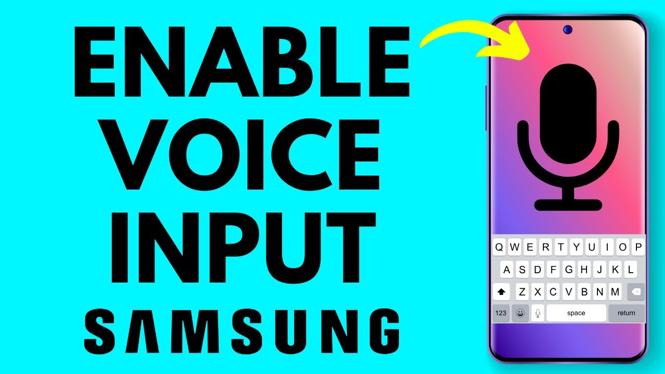
- Enable Voice Input: Now, look for the “Voice input” option and toggle it on. This will allow your keyboard to use voice typing features.
- Activate the Microphone Button: Now, when you open your keyboard, you should see a microphone icon. Tap on this icon to start using voice typing.
- Start Dictating: Speak clearly into your device’s microphone, and your words will be transcribed into text. You can dictate text for messages, emails, and more.
By following these straightforward steps, you can easily enable voice typing on your Samsung Keyboard and streamline your text input. Enjoy hands-free texting and improve your efficiency with this powerful feature!
More Samsung Phone Tips & Tutorials:
 Subscribe Now! 🙂

Discover more from Gauging Gadgets
Subscribe to get the latest posts sent to your email.