How to Make a PDF Smaller for Email Attachments
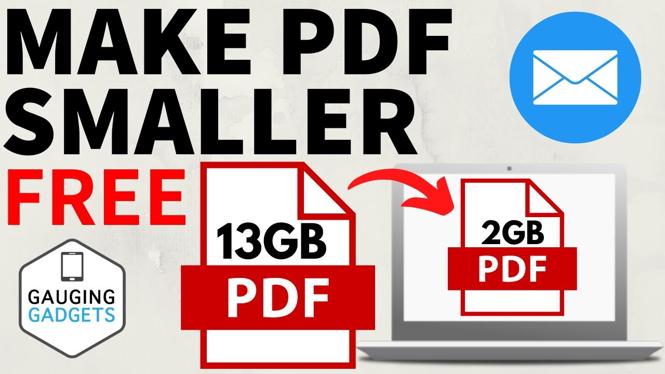
In today’s digital world, sharing documents via email has become a necessity. However, large PDF files can often pose a challenge when it comes to sending them as email attachments. Whether you’re a student submitting assignments, a professional sharing reports, or just someone sending photos, knowing how to compress a PDF file can save you time and hassle. In this blog post, we’ll guide you step-by-step on how to make your PDF smaller without sacrificing quality, using a convenient tool called PDFGadget.
Video Tutorial
Why You Might Be Looking for This Tutorial
There are several reasons why you might be searching for a way to make your PDF smaller for email. One common reason is that email services typically have attachment size limits, which can range from 10MB to 25MB. Larger files may not go through, resulting in frustrating bounce-back messages. Additionally, when sending multiple files, their combined sizes can quickly exceed these limits. By compressing your PDFs, you can effectively manage file sizes, ensuring that your documents are easy to send and receive.
Another reason to reduce PDF file size is to enhance loading and downloading speed. Smaller files not only streamline your email communications but also improve accessibility for recipients who may be on slower internet connections. Lastly, compressing PDFs while maintaining quality is crucial for ensuring that your documents look professional and are easy to read, which is particularly important in business communications.
Steps to Make a PDF Smaller Using PDFGadget
- Access PDFGadget: Open your web browser and navigate to the PDFGadget website. This tool is designed to compress PDF files directly in your browser without needing any downloads or installations.
- Upload Your PDF: Click on the ‘Upload’ button to select the PDF file you want to compress. You can typically drag and drop your file into the designated area or navigate through your file explorer.
- Compress the PDF: Once your file is uploaded, you’ll see an option to compress it. Click on the ‘Compress’ or ‘Reduce Size’ button. PDFGadget will begin processing your file attempting to shrink its size while preserving its quality.
- Download the Compressed PDF: After the compression process is complete, you will be prompted to download the smaller PDF file. Save it to your device.
- Check the Quality: Open the downloaded PDF to ensure that the quality is satisfactory. This step is crucial, especially if you’re dealing with important documents.
- Email Your PDF: Now that your file size is reduced, you can easily attach it to your email and send it without worrying about size limits.
By following these simple steps, you’ll be well-equipped to handle PDF files for any emailing needs. With PDFGadget, you have a quick and efficient way to compress your documents, making your email experience smoother and hassle-free.
More PDF Tools & Tutorials:
 Subscribe Now! 🙂

Discover more from Gauging Gadgets
Subscribe to get the latest posts sent to your email.