How to Unpublish a Facebook Page
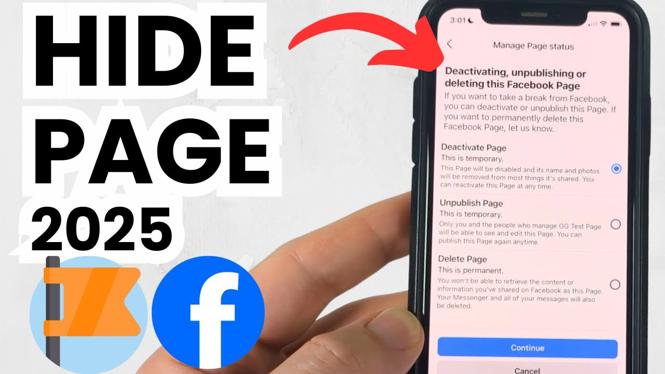
Are you looking to take a break from managing your Facebook Page or make significant changes without the public viewing your updates? Unpublishing your Facebook Page is a straightforward solution that allows only you and other administrators to see the content. In this guide, we will walk you through the steps to unpublish your Facebook Page using the app on iPhone, Android, or Samsung devices. This ensures your page remains intact while you work behind the scenes.
Video Tutorial
Why You Might Be Looking for This Tutorial
There are several reasons why you might want to unpublish your Facebook Page:
- Making Changes: You may want to update your page with new information, branding, or promotions without the public seeing your work in progress.
- Taking a Break: If you need time away from managing the page due to personal or business reasons, unpublishing is a good option.
- Testing Content: If you wish to trial different types of content or layouts, it’s best to do this without the eyes of your audience.
- Privacy Concerns: If there are concerns regarding privacy or security, unpublishing your page protects it from public view.
Steps to Unpublish Your Facebook Page
Follow these steps to unpublish your Facebook Page using the Facebook app on your device:
- Open the Facebook App: Launch the Facebook app on your iPhone, Android, or Samsung device.
- Go to Your Page: Navigate to the Facebook Page you want to unpublish. You can find it under the “Pages” section in the menu.
- Access Page Settings: Tap on the “More” or settings icon, usually represented by three dots or a gear symbol.
- Select ‘Settings’: From the dropdown menu, choose ‘Settings’ to open the page settings.
- Unpublish the Page: Look for the option that says “Page Visibility” or “Page Status” and toggle the setting to “Unpublish Page.”
- Confirm Changes: Follow any prompts to confirm your decision to unpublish the page.
Once your page is unpublished, only you and other administrators will have access, allowing you to modify or take care of other tasks without the pressure of public scrutiny. If you want to republish the page, simply follow the same steps and toggle the setting back to “Publish Page.”
By following these easy steps, you can manage your Facebook presence more effectively, ensuring your brand remains well-maintained even during downtime.
More Facebook Tips & Tutorials:
 Subscribe Now! 🙂

Discover more from Gauging Gadgets
Subscribe to get the latest posts sent to your email.