How to Get Rid of Little Circle on iPhone Screen
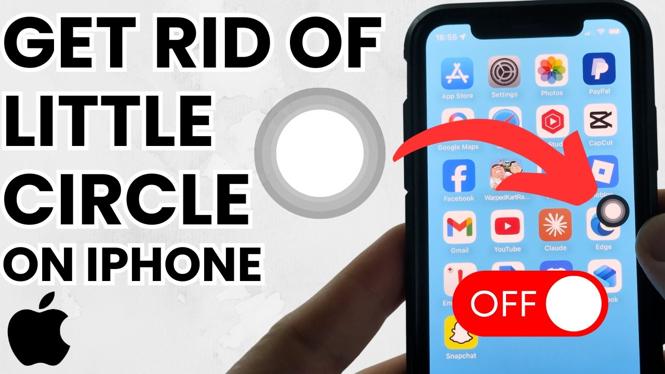
Is your iPhone screen obstructed by a little floating circle that simply won’t disappear? This small round button, known as AssistiveTouch, can be a source of frustration for many iPhone users. Fortunately, this tutorial will guide you through the simple steps to turn off AssistiveTouch and get rid of the gray circle overlay on your device. Whether you have the iPhone 17, iPhone 16, or any model running iOS 26, this guide will help restore a clear screen.
Video Tutorial
Why You Might Be Looking for This Tutorial
Having a persistent floating button on your iPhone screen can be distracting and can interfere with the usability of your device. Many users might be searching for a solution to regain their full screen functionality. You might be experiencing this issue for various reasons, including:
- Accidentally enabling the AssistiveTouch feature.
- Desiring a cleaner appearance on your iPhone screen.
- Wanting to improve your overall user experience without the floating button.
- Looking for quick solutions without needing to download any third-party apps.
Steps to Get Rid of the Little Circle on Your iPhone Screen
Follow these straightforward steps to disable AssistiveTouch and eliminate the little circle from your iPhone screen:
- Open the Settings app: Locate and tap on the ‘Settings’ icon on your home screen.
- Navigate to Accessibility: Scroll down and select ‘Accessibility’ from the list of options.
- Select Touch: Under the ‘Physical and Motor’ section, tap on ‘Touch.’
- Access AssistiveTouch: Find and select ‘AssistiveTouch’ located at the top of the menu.
- Turn off AssistiveTouch: Toggle the switch next to ‘AssistiveTouch’ to the off position. The little circle should disappear from your screen immediately.
By following these steps, you’ll be able to enjoy a clear display on your iPhone without the annoying little circle interfering with your activities. If the floating button reappears or you encounter any other issues, consider repeating the steps or checking for any software updates that may affect the functionality.
In conclusion, disabling AssistiveTouch can significantly enhance your iPhone experience by providing more screen space and reducing distractions. If you found this tutorial helpful, share it with others who might be experiencing the same issue. Enjoy using your iPhone without any disturbances!
More iPhone Tutorials:
 Subscribe Now! 🙂

Discover more from Gauging Gadgets
Subscribe to get the latest posts sent to your email.