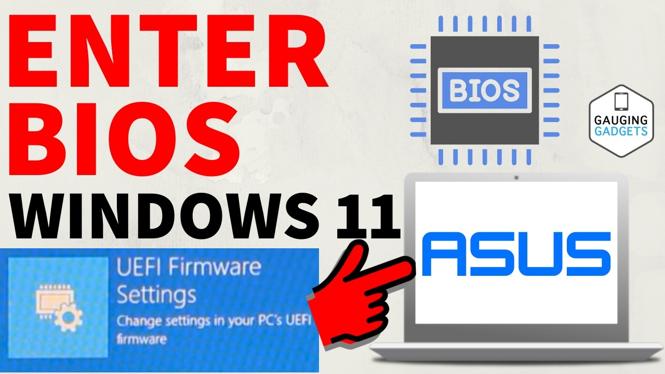
How to Enter BIOS on ASUS PC or Laptop in Windows 11
Accessing the BIOS (Basic Input/Output System) on your ASUS PC or laptop is a crucial task for anyone looking to optimize their system’s performance or troubleshoot issues. The BIOS provides a gateway to configure hardware settings, change boot order, and enable features like virtualization. If you’re running Windows 11 and need to enter the BIOS setup on your ASUS device, this guide will walk you through the steps using both the keyboard shortcut method and Windows 11 advanced startup options.
Video Tutorial
Why You Might Be Looking for This Tutorial
Many users may find themselves in need of entering the BIOS for various reasons, including:
- Changing Boot Order: If you want to boot from a USB drive or a different disk, you need to change the boot priority.
- Enabling Virtualization: This feature is essential for running virtual machines or certain software applications.
- Overclocking: Enthusiasts may wish to adjust settings for better performance.
- Troubleshooting System Issues: If you’re experiencing hardware issues, accessing the BIOS may help diagnose and resolve problems.
Steps to Enter BIOS on Your ASUS PC or Laptop
Method 1: Using Keyboard Shortcut
- Power Off Your Device: Completely shut down your ASUS PC or laptop.
- Power On and Press F2: As soon as you power on your device, repeatedly press the
F2key until the BIOS menu appears. Some models may requireDeleteinstead. - Access BIOS Settings: Once in the BIOS menu, navigate using the keyboard to find and adjust the settings you need.
Method 2: Using Windows 11 Advanced Startup Options
- Open Settings: Click on the Start menu and select Settings (the gear icon).
- Navigate to Recovery: In the Settings menu, click on System, then select Recovery from the sidebar.
- Access Advanced Startup: Under the Advanced startup section, click on Restart now.
- Select Troubleshoot: When your PC restarts, you will see a blue screen. Choose Troubleshoot.
- Access UEFI Firmware Settings: Click on Advanced options, then select UEFI Firmware Settings and finally click Restart.
- Enter BIOS: Your PC will restart and take you directly into the BIOS setup.
Conclusion
Entering the BIOS on your ASUS PC or laptop running Windows 11 is a straightforward process that can significantly enhance your ability to manage your system’s hardware settings and troubleshoot issues. Whether you use the keyboard shortcut or the advanced startup options, having access to these settings allows you to optimize and customize your device according to your needs.
More Windows 11 Tips & Tutorials:
 Subscribe Now! 🙂

Discover more from Gauging Gadgets
Subscribe to get the latest posts sent to your email.