How to Deactivate or Delete Facebook Account on Desktop, PC, or Laptop
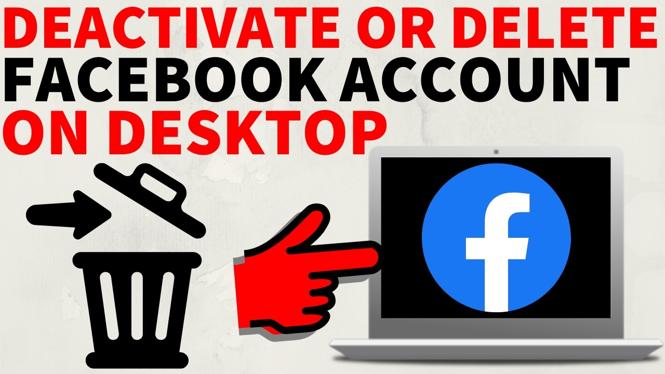
In today’s digital world, managing your online presence is more important than ever. Maybe you’re considering taking a break from social media or permanently deleting your Facebook account for privacy reasons. Whether it’s due to a desire for less online engagement or concerns about data security, knowing how to deactivate or delete your Facebook account on a desktop, PC, or laptop is crucial.
Why You Might Be Looking for This Tutorial
There are several reasons why you might want to deactivate or erase your Facebook account:
- Privacy Concerns: With growing awareness about online privacy and data breaches, many users prefer to reduce their digital footprint.
- Time Management: Taking a break from social media can lead to increased productivity and focus.
- Mental Health: Some individuals find that social media contributes to anxiety or depression and need to unplug.
- Data Control: Users may want to reassess the information they have shared on the platform.
Steps to Deactivate or Delete Your Facebook Account
Follow these simple steps to either deactivate or permanently delete your Facebook account using your desktop, PC, or laptop:
Step 1: Log into Your Facebook Account
Open your preferred web browser and navigate to the Facebook website. Enter your login credentials to access your account.
Step 2: Access Your Settings
Once logged in, locate the downward arrow in the top right corner of the page. Click on it and select “Settings & Privacy,” then choose “Settings.”
Step 3: Go to Your Facebook Information
In the left-hand column, click on “Your Facebook Information.” This section will provide you with options regarding your data and account management.
Step 4: Choose Deactivation or Deletion
Click on “Deactivation and Deletion.” You will be presented with two options: “Deactivate Account” and “Delete Account.” Choose the one that suits your needs.
Step 5: Follow the Prompts
If you choose to deactivate, follow the prompts to provide a reason if prompted, then click “Deactivate.” For deletion, Facebook will walk you through the process and may encourage you to reconsider, as deletion is permanent.
Step 6: Confirm Your Choice
For both deactivation and deletion, you will need to confirm your choice. Make sure to follow all on-screen instructions carefully.
Additional Considerations
Before you proceed, be sure to back up any important data, such as photos or messages, that you may want to keep. For deactivation, remember that you can reactivate your account at any time by simply logging back in. However, deletion is permanent and cannot be undone after 30 days.
Video Tutorial
This tutorial not only provides you with comprehensive steps to deactivate or delete your Facebook account effortlessly, but it also empowers you to take control of your digital life in 2026 and beyond. Choose what’s best for you and use social media in a way that serves your needs and interests.
More Facebook Tips & Tutorials:
 Subscribe Now! 🙂

Discover more from Gauging Gadgets
Subscribe to get the latest posts sent to your email.