How to Create Group Chat on Messenger
In today’s fast-paced world, staying connected with friends and family is more important than ever. Messenger offers a convenient way to communicate, and knowing how to create a group chat can enhance your social interactions. Whether you’re planning an event, sharing updates, or simply catching up, a group chat allows you to message multiple people at once, making conversations organized and efficient.
Video Tutorial
Why You Might Be Looking for This Tutorial
You may be looking for this tutorial for various reasons. Perhaps you’re organizing a family gathering, coordinating with friends for a trip, or wanting to set up a book club. Whatever the case, creating a group chat on Messenger helps streamline communication, ensuring everyone is on the same page. With the increasing reliance on digital communication, mastering this feature can significantly improve your connection with loved ones.
Steps to Create a Group Chat on Messenger
- Open Facebook Messenger: Launch the Messenger app on your mobile device or access it through your web browser on a computer.
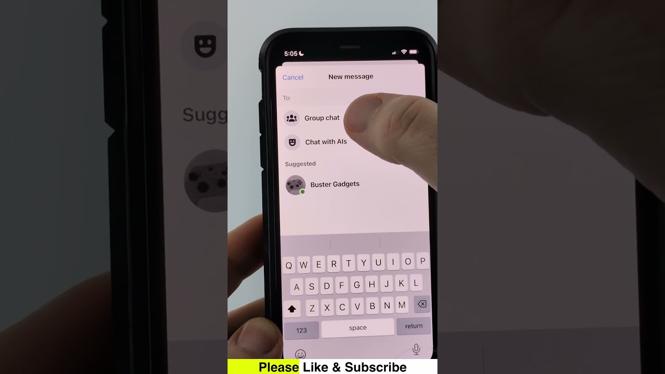
- Select New Message: Click on the “New Message” or pencil icon. This option is usually found at the top right corner of the screen.
- Add Friends: Start typing the names of friends or family members you wish to include in the group chat. As you type, suggestions will appear; click on the names to add them to the chat.
- Name Your Group: Once you’ve added your desired participants, you can choose to name your group chat. Look for the option or settings icon, and enter a name that represents the group’s purpose.
- Start Chatting: Now that your group chat is set up, you can start sending messages. Share photos, videos, and even files to keep everyone engaged in the conversation.
Tips for Managing Group Chats
- Set a Group Purpose: Clearly define the group chat’s purpose to keep conversations focused.
- Mute Notifications: If your group chat becomes too active, consider muting notifications to avoid distractions.
- Utilize Polls: Use Messenger’s poll feature for group decisions, such as picking a date for an event.
Creating a group chat on Messenger is a simple process that can greatly enhance your ability to communicate with multiple people at once. By following the steps outlined above, you can quickly set up a conversation space that keeps you connected with those who matter most. Whether it’s for planning events or just staying in touch, Messenger’s group chat feature is a valuable tool in your social media toolkit.
More Facebook Messenger Tips & Tutorials:
 Subscribe Now! 🙂

Discover more from Gauging Gadgets
Subscribe to get the latest posts sent to your email.