How to Change Clock Time to 24 Hour Military on iPhone
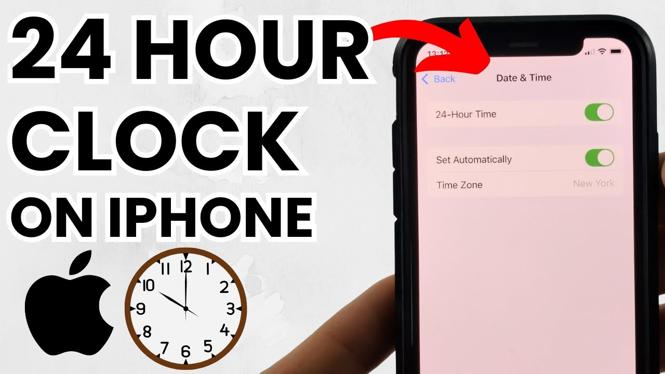
Changing your iPhone to display time in the 24-hour format can be a practical choice for many users. Whether you are in the military, work in a profession with a need for precision, or simply prefer the streamlined look of military time, this tutorial will guide you through the process. You can easily switch from the common 12-hour AM/PM format to the 24-hour military time with just a few taps in your iPhone settings, without the need for any additional apps.
Video Tutorial
Why You Might Be Looking for This Tutorial
There are several reasons why users might want to change their iPhone clock to a 24-hour format. Some individuals find it easier to read time in military format, particularly in professional settings where clarity and brevity are important. For travelers, especially those who frequently visit countries that primarily use the 24-hour system, adapting to military time can help avoid confusion. Additionally, many people appreciate the aesthetic of the military format, which eliminates the ambiguity of AM and PM designations.
Steps to Change Your iPhone Clock to 24 Hour Military Time
- Open Settings: Locate and tap on the Settings app on your iPhone’s home screen.
- Navigate to Display & Brightness: Scroll down and select “Display & Brightness.”
- Access the Date & Time Settings: Look for “Date & Time” and tap on it.
- Enable 24-Hour Time: Find the “24-Hour Time” option and toggle the switch to the on position.
- Exit Settings: Once enabled, you can exit the Settings app. Your iPhone will now display time in the 24-hour military format across all relevant features, including your lock screen and alarms.
By following these simple steps, you will successfully change your iPhone’s clock to a 24-hour military time format, allowing for easier interpretation and a cleaner display. Enjoy your new time settings!
More iPhone Tutorials:
 Subscribe Now! 🙂

Discover more from Gauging Gadgets
Subscribe to get the latest posts sent to your email.