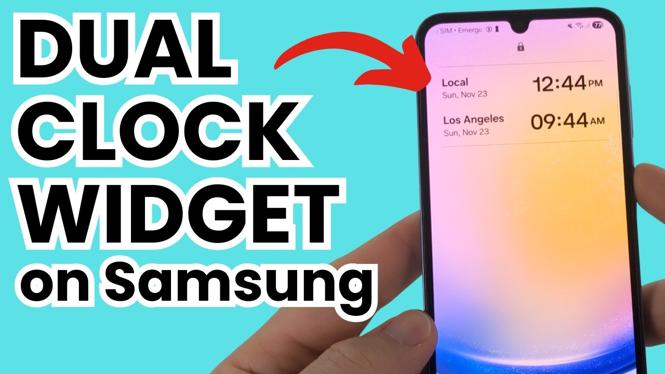
How to Add Dual Clock Widget On Samsung Lock Screen
In today’s fast-paced world, staying on schedule and managing time across different time zones is essential for many individuals. Whether you travel frequently, have family living abroad, or work with international clients, being aware of multiple time zones can save you a lot of hassle. One handy solution is to add a dual clock widget to your Samsung lock screen. This tutorial will walk you through the simple steps of setting up a dual clock widget, ensuring you are always informed of the time, no matter where you are or who you are connecting with.
Video Tutorial
Why You Might Be Looking For This Tutorial
Many Samsung users might find themselves in a situation where they need to keep track of time in different regions. By adding a dual clock to your lock screen, you can effortlessly monitor two time zones at a glance without unlocking your device. This feature is particularly beneficial for:
- Travelers who frequently cross time zones.
- Professionals who have to coordinate meetings with clients or colleagues in different parts of the world.
- Families with loved ones living in various countries.
- Anyone looking for a more personalized lock screen experience.
Steps to Add a Dual Clock Widget On Samsung Lock Screen
- Unlock your Samsung device – Start by unlocking your phone to access the home screen.
- Access the Lock Screen Settings – Go to the settings menu by tapping on the gear icon, then navigate to the “Lock Screen” option.
- Select “Clock Style” – In the lock screen settings, look for “Clock Style” and tap on it to customize your clock appearance.
- Choose Dual Clock – In the clock settings, look for the option to add a second clock. Select this option and choose your preferred time zone for the second clock.
- Adjust the Appearance – You can customize the appearance of the clocks, including size, font, and color, to match your style.
- Save your Changes – Once you’ve set up your dual clock, make sure to save your changes and exit the settings.
- Check the Lock Screen – Lock your device and then wake it up to view your newly added dual clock widget on the lock screen.
With these straightforward steps, you can now enjoy the benefits of having a dual clock widget on your Samsung lock screen. This feature not only enhances the functionality of your device but also adds a touch of personalization that can be extremely useful in our interconnected world. If you encounter any difficulties or have further questions, feel free to leave a comment below, and we’ll be happy to assist you!
More Samsung Phone Tips & Tutorials:
 Subscribe Now! 🙂

Discover more from Gauging Gadgets
Subscribe to get the latest posts sent to your email.