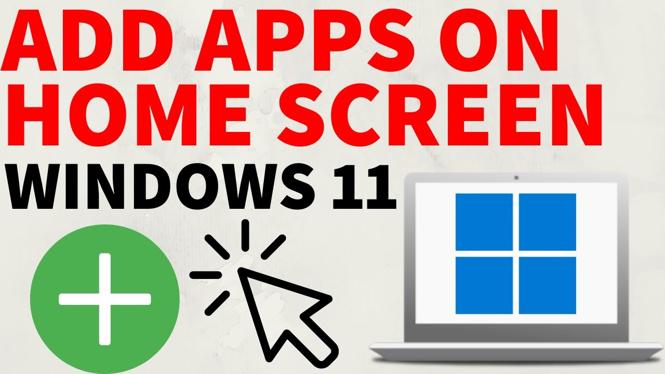
How to Add Apps on Laptop Home Screen
In today’s fast-paced digital world, quickly accessing your favorite applications can significantly enhance your productivity. Whether you are a student, a professional, or a casual user, having frequently used apps easily accessible on your laptop’s home screen is essential. This guide will walk you through the steps of pinning apps, software, and shortcuts to your PC and laptop, specifically for Windows 10 and Windows 11 users.
Video Tutorial
Why You Might Be Looking for This Tutorial
Many users may find themselves overwhelmed by the clutter of their desktop or struggling to find the applications they use most often. Pinning apps to your laptop home screen not only provides a cleaner workspace but also facilitates faster access to the programs you rely on daily. By following this tutorial, you can simplify your workflow and customize your home screen according to your needs, saving you valuable time and effort.
Steps to Add Apps on Laptop Home Screen
For Windows 10 Users
- Find the Application: Click on the Start menu and scroll through the list of applications to find the one you want to pin.
- Pin to Start: Right-click on the application and select “Pin to Start.” This will add the app to your Start menu for easy access.
- Create a Shortcut on Desktop: If you want a desktop icon, right-click on the application again, select “More,” and then “Open file location.” Right-click the application icon in the file location and select “Send to” and then “Desktop (create shortcut).” This places an icon directly on your desktop.
For Windows 11 Users
- Open Start Menu: Click on the Start button located at the taskbar or press the Windows key on your keyboard.
- Locate the App: Scroll or use the search feature to find the application you wish to pin.
- Pin the App: Right-click on the app icon. Choose “Pin to Taskbar” for quick access on the taskbar or “Pin to Start” to add it to your Start menu.
- Add Shortcuts to Desktop: Similar to Windows 10, right-click the application, select “Open file location,” then right-click the application and choose “Send to” followed by “Desktop (create shortcut).” This allows you to quickly access your application directly from your desktop.
Conclusion
Customizing your laptop home screen by adding shortcuts to your favorite applications is a straightforward yet effective way to enhance your productivity. By following the steps detailed in this tutorial, you can create an organized and efficient workspace tailored to your personal preferences. Start pinning your most-used applications today and enjoy a more streamlined digital experience.
More Windows 11 Tips & Tutorials:
 Subscribe Now! 🙂

Discover more from Gauging Gadgets
Subscribe to get the latest posts sent to your email.