How to Access the Clipboard on Android
In today’s digital world, the clipboard is an essential feature that allows you to copy and paste text seamlessly. Many users, however, are unaware of how to access the clipboard functionality on their Android devices, particularly when using the Gboard keyboard. This post will guide you through the process of accessing and utilizing the clipboard on your Android phone, ensuring that you can easily manage your copied content.
Video Tutorial
Why You Might Be Looking for This Tutorial
Understanding how to access the clipboard on your Android device may be beneficial for several reasons:
- Enhanced Productivity: Quickly retrieving copied text can significantly improve your workflow, especially if you frequently copy information for work or study.
- Efficient Information Management: Knowing how to view clipboard history helps you avoid the hassle of losing important snippets of text.
- Better Use of Gboard Features: Gboard has features that enhance clipboard usage, and accessing it allows you to make the most of this powerful keyboard tool.
Steps to Access the Clipboard on Android
Here’s a simple step-by-step guide to accessing the clipboard on your Android phone using the Gboard:
- Open an App: Start by opening any app where you can input text, such as Messages, Notes, or a web browser.
- Tap on the Text Field: Click on the text field to bring up the keyboard.
- Access Gboard: Ensure you are using the Gboard as your keyboard. If you haven’t installed it, download it from the Google Play Store.
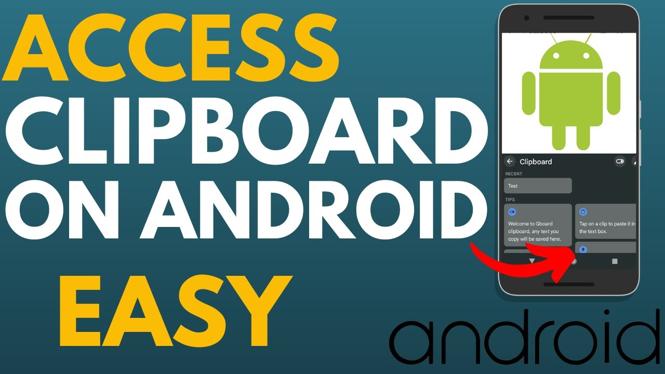
- Open Clipboard: On the Gboard, tap on the clipboard icon, which is usually located above the keyboard or within the settings options. If you do not see it, you may need to enable clipboard features in Gboard settings.
- View Clipboard History: Once you access the clipboard, you will see a history of items that you have copied recently. You can tap on any item to paste it directly into your text field.
By following these steps, you’ll be able to efficiently access your clipboard on Android and utilize copied text with ease. Make sure to explore the additional clipboard settings in Gboard for a better experience! Accessing your clipboard has never been easier, and now you can streamline your copying and pasting tasks effectively.
More Android Tips & Tutorials:
 Subscribe Now! 🙂

Discover more from Gauging Gadgets
Subscribe to get the latest posts sent to your email.