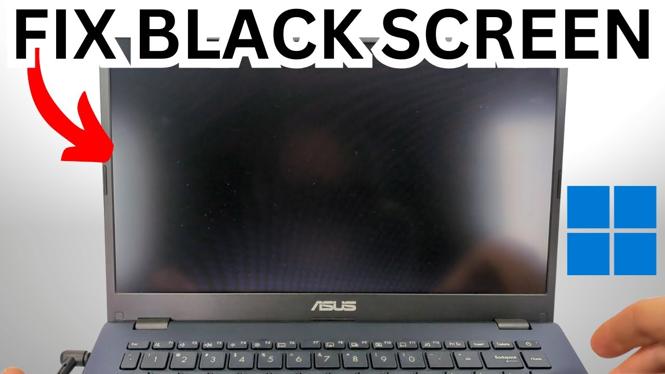
Fix Your Laptop That’s On But Display Is Black
Experiencing a black screen on your laptop can be frustrating, especially when you know the device is on and functioning. This problem can arise due to various reasons, including hardware issues, software malfunctions, or even a simple display error. Fortunately, there are effective troubleshooting methods that can help you fix your laptop’s black screen issue without needing to seek expensive repairs.
Video Tutorial
Why You Might Be Looking for This Tutorial
If you are reading this, chances are your laptop screen is black despite the device being powered on. You might be concerned about losing important files or have urgent tasks to complete. This guide is useful for anyone who wants to troubleshoot and resolve this issue without professional help. Whether your laptop is a Lenovo, Acer, Asus, Dell, HP, MSI, Samsung, Toshiba, LG, or Huawei, the methods outlined here can prove helpful.
Steps to Fix a Black Display on Your Laptop
1. Check the Power Supply
Start with inspecting your laptop’s power supply. Ensure that the device is properly plugged in, and check if the power LED is illuminated. A dead battery or faulty charger can cause the laptop to power on but not display anything.
2. Conduct a Hard Reset
A hard reset can often resolve temporary hardware glitches. To perform a hard reset, follow these steps:
- Turn off your laptop and disconnect the power adapter.
- Remove the battery (if removable).
- Press and hold the power button for 15-20 seconds.
- Reinsert the battery, connect the power adapter, and turn on the laptop.
3. Connect an External Monitor
To determine whether the issue lies with the laptop’s display, connect it to an external monitor. If the external monitor displays correctly, the problem may be related to the laptop’s screen or connections.
4. Adjust Display Settings
In some cases, the display settings might be misconfigured. Use the keyboard shortcut (usually Fn + F5 or F8) to toggle between display modes or extend displays.
5. Boot in Safe Mode
Booting your laptop in Safe Mode can help identify software or driver-related issues. To enter Safe Mode, restart your laptop and press F8 as it boots up to access the advanced startup options, then select Safe Mode.
6. Update or Reinstall Graphics Drivers
If you can access Safe Mode, consider updating or reinstalling your graphics drivers. Go to the Device Manager, find the Display Adapters section, and update the driver or uninstall it, then restart your laptop to let it reinstall automatically.
7. Check for Hardware Issues
If none of the previous steps resolve the issue, it might be time to consider hardware problems. Check for loose connections, damaged screens, or faulty graphics cards. At this point, consulting a professional technician could be necessary.
Conclusion
Encountering a black screen on your laptop can be alarming, but with the right troubleshooting steps, many users can solve this problem at home. Remember that while some issues are easily fixed with basic techniques, others may require professional intervention. Always back up your important files when you can, and stay informed about your laptop’s health to avoid future headaches.
More Windows 11 Tips & Tutorials:
 Subscribe Now! 🙂

Discover more from Gauging Gadgets
Subscribe to get the latest posts sent to your email.