How to Remove Professional Account on Instagram
Switching back to a personal account on Instagram can often feel daunting, especially for those who are used to the features and analytics that a professional account provides. However, whether you are looking for a more private experience or simply want to eliminate the burden of managing business tools, this guide is designed to walk you through the steps necessary to easily remove your professional account on Instagram. By following these instructions, you will regain your personal account type, thereby enjoying a more straightforward social media experience.
Video Tutorial
Why You Might Be Looking for This Tutorial
There are several reasons someone may want to switch from a professional account back to a personal one. Some common motivations include:
- Desire for Privacy: A personal account offers fewer insights and maintains your privacy, which can be appealing if you don’t want your audience to have access to analytics or business tools.
- Less Pressure: Without business features, users may feel less pressure to curate content for engagement or performance metrics, allowing for a more relaxed social media experience.
- Increased Simplicity: The switch can remove unnecessary complexity from your Instagram interface, making it simpler to use.
Steps to Remove Your Professional Account on Instagram
Follow these steps to successfully switch your account type from a professional back to a personal account:
- Open the Instagram App: Ensure you have the latest version of the Instagram app installed on your device and log into your account.
- Go to Your Profile: Tap on the profile icon in the bottom right corner of the screen to access your profile.
- Access Settings: Tap on the three horizontal lines in the upper right corner to open the menu, then select “Settings” at the bottom of the menu.
- Account Settings: In the Settings menu, look for the option titled “Account” and select it.
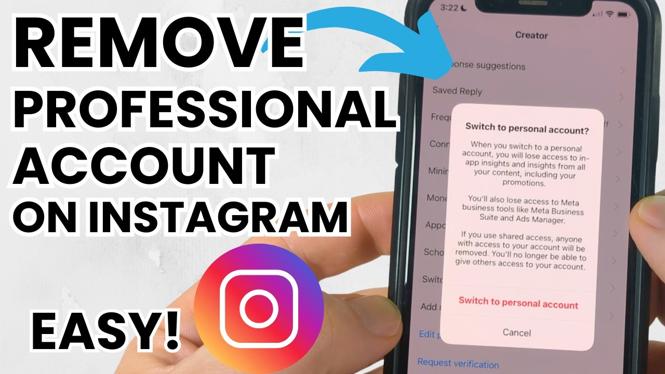
- Switch Back to Personal Account: Scroll down and find the “Switch to Personal Account” option. Tap on it and follow the subsequent prompts to confirm your choice.
- Adjust Your Preferences: After switching back, you might want to review and update your privacy settings or any other preferences according to your needs.
Once you have completed these steps, your professional account will be converted back to a personal account. You will lose access to business insights and tools, but you will enjoy a more casual and private Instagram experience moving forward.
If you’re looking to make this change quickly and effectively, refer to the video tutorial provided above for visual guidance. Happy Instagramming!
More Instagram Tips & Tutorials:
 Subscribe Now! 🙂

Discover more from Gauging Gadgets
Subscribe to get the latest posts sent to your email.