How to Make Roku Channel Tiles Bigger or Smaller
Are you struggling with the size of channel tiles on your Roku TV? If navigating your Roku home screen feels cumbersome, or you simply prefer a more customized viewing experience, you’re in the right place. This tutorial will walk you through the steps to change the size of your Roku channel tiles, so you can create a layout that works best for you in 2026.
Why You Might Be Looking for This Tutorial
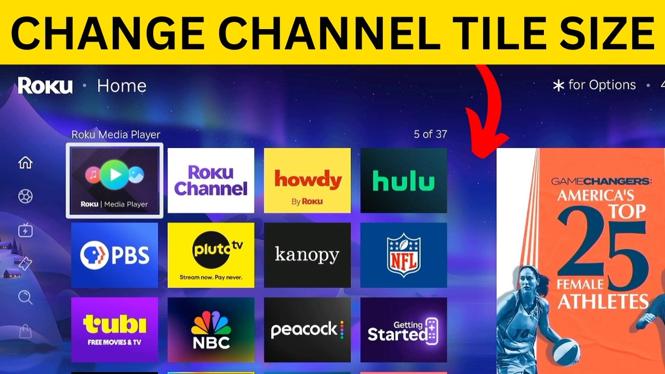
Adjusting the size of your Roku channel tiles allows for greater personalization of your viewing experience. Many users may find that larger tiles are easier to navigate, especially for individuals with visual impairments or those who prefer a more straightforward approach to accessing their favorite channels. Conversely, if you have numerous apps and channels installed, making the tiles smaller can help fit more options on your screen at once. Whether you want to declutter your home screen or enhance accessibility, knowing how to resize these tiles can greatly enhance your Roku experience.
Steps to Resize Roku Channel Tiles
- Access the Roku Home Screen: Start by turning on your Roku TV and navigating to the home screen using your remote.
- Select Settings: Scroll down and select the ‘Settings’ option. This will typically be located towards the bottom of the home screen menu.
- Go to Display Type: In the settings menu, look for the ‘Display type’ or an equally named option that pertains to video settings. This is where you will adjust the overall display settings.
- Adjust the Tile Sizes: Depending on your Roku model, you may find an option labeled ‘Home screen’ settings or ‘Tile size.’ From here, you can toggle between larger and smaller tile options.
- Save Changes: After selecting your preferred tile size, ensure you save your changes before exiting the menu. You may need to restart your Roku TV for the changes to take full effect.
- Return to the Home Screen: Navigate back to the home screen to see your newly adjusted channel tile sizes. Make sure everything is set to your liking!
Video Tutorial
With these straightforward steps, you can easily customize your Roku TV to suit your viewing habits. Enjoy a better organized interface and a more enjoyable experience navigating your favorite entertainment channels.
More Roku Tips & Tutorials:
 Subscribe Now! 🙂

Discover more from Gauging Gadgets
Subscribe to get the latest posts sent to your email.