How to Scan QR Code on iPhone
In the digital age, QR codes have become increasingly popular for sharing information quickly and efficiently. Whether it’s accessing a website, connecting to Wi-Fi, or making payments, knowing how to scan a QR code on your iPhone is an essential skill. In this tutorial, we will guide you through the process of scanning QR codes using your iPhone’s camera and also provide an alternative method using a QR code scanning app.
Why You Might Be Looking for This Tutorial
There are several reasons someone may seek out this tutorial on scanning QR codes on their iPhone:
- Convenience: Scanning QR codes with your iPhone camera allows you to quickly access web links, event details, or promotional offers without manually typing in URLs.
- Wi-Fi Connectivity: You can use QR codes to effortlessly connect to Wi-Fi networks without needing to enter long passwords.
- Backup Options: Sometimes, the camera may not pick up the QR code accurately. Knowing how to use a backup scanning method ensures you never miss out on important information.
- Learning Curve: For individuals who are not tech-savvy, this tutorial can help to demystify QR codes and enhance their smartphone usage skills.
Steps to Scan a QR Code on iPhone
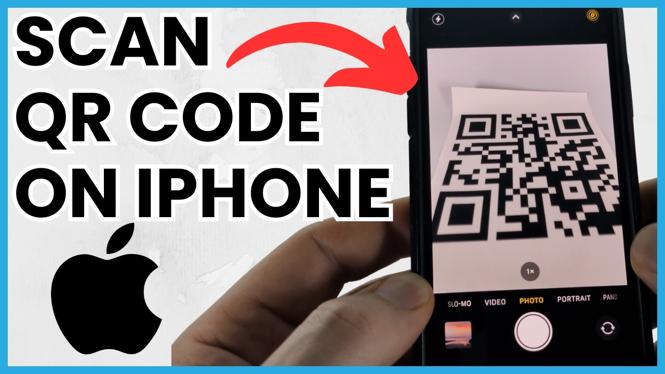
- Open the Camera App: Start by launching the Camera app from your iPhone’s home screen.
- Aim at the QR Code: Position your iPhone so that the QR code appears in the center of the camera view. Make sure it’s well-lit and clearly visible.
- Wait for Notification: Once your iPhone recognizes the QR code, a notification will pop up on the screen, indicating the action it can perform (like opening a link).
- Click on the Notification: Tap on the notification to proceed. You will be redirected to the website or the action associated with the QR code.
Using QR Code Gadget as a Backup Scanner
If your iPhone camera is having trouble scanning the QR code, you can use an app called QR Code Gadget as an alternative. Here’s how:
- Download QR Code Gadget: Visit the App Store and download the QR Code Gadget app.
- Open the App: Launch the app after installation.
- Point the Camera at the QR Code: The app will automatically detect and scan QR codes.
- Follow the Prompts: The app will display the information or action linked to the QR code.
Video Tutorial
For a visual guide, check out the video tutorial below:
Now that you know how to scan QR codes on your iPhone, you can easily access information and connect to services with just a quick scan. Happy scanning!
More iPhone Tips & Tutorials:
 Subscribe Now! 🙂

Discover more from Gauging Gadgets
Subscribe to get the latest posts sent to your email.