How to Change Safari Default Search Engine on iPhone
Are you tired of using the same search engine every time you open Safari on your iPhone? Whether you prefer Bing, Yahoo, DuckDuckGo, or another option, changing the default search engine is a quick and easy process. In this tutorial, we’ll guide you through the steps to switch your search engine on iOS 26, which includes compatibility with iPhone 17, iPhone 16, iPhone 15, and earlier models in 2026.
Video Tutorial
Why You Might Be Looking for This Tutorial
There are several reasons why you might want to change the default search engine on your iPhone’s Safari browser. Perhaps you have privacy concerns and prefer to use DuckDuckGo, or you find Bing’s features more useful for your searches. Changing the search engine can enhance your browsing experience, making it tailored to your preferences. Additionally, switching to a search engine that better suits your needs can improve the relevance of the results you receive. Regardless of your motivation, our step-by-step guide will help you make this change effortlessly.
Steps to Change the Default Search Engine in Safari on iPhone
- Open the Settings App: Locate and tap on the “Settings” app on your iPhone’s home screen.
- Scroll Down and Select Safari: In the Settings menu, scroll down until you find “Safari” and tap on it to open Safari settings.
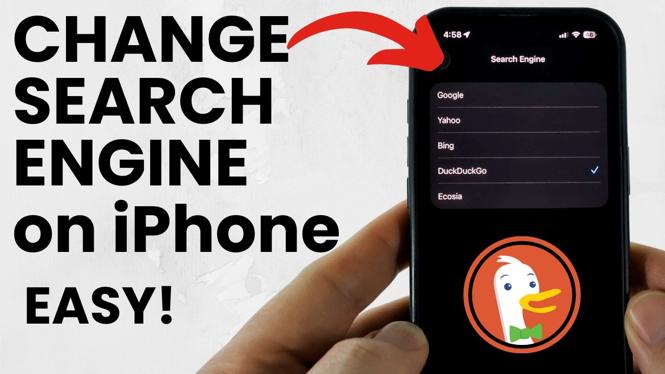
- Tap on Search Engine: Within the Safari settings, look for the option labeled “Search Engine” and select it.
- Choose Your Preferred Search Engine: You will see a list of available search engines, including Google, Bing, Yahoo, and DuckDuckGo. Tap on the one you wish to set as your default search engine.
- Exit Settings: After making your selection, simply exit the Settings app. Your changes will be automatically saved.
Conclusion
Changing the default search engine in Safari on your iPhone is a simple process that can significantly enhance your web browsing experience. By following the steps outlined above, you can quickly switch to the search engine that best fits your needs. If you have any further questions or need additional assistance, feel free to refer back to this guide or watch the video tutorial for a visual walkthrough.
More iPhone Tutorials:
 Subscribe Now! 🙂

Discover more from Gauging Gadgets
Subscribe to get the latest posts sent to your email.