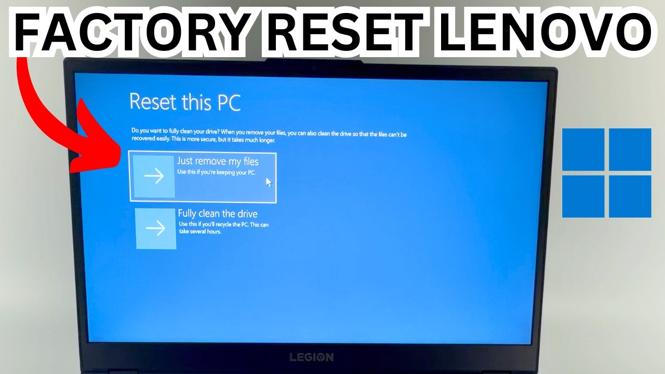
How to Factory Reset Lenovo PC Or Laptop Without Password
In today’s digital age, gaining access to our devices is essential, but what happens when you forget your password? Lenovo users may find themselves in this predicament, especially if they have important data stored on their machines. A factory reset is a powerful solution that allows you to restore your Lenovo PC or laptop to its original state, effectively bypassing the login requirement. In this blog post, we will guide you through the steps necessary to perform a factory reset on various Lenovo models, including IdeaPad, ThinkPad, Legion, and Yoga, without needing your Windows password.
Video Tutorial
Why You Might Be Looking for This Tutorial
There are several reasons why you might need to factory reset your Lenovo PC or laptop without a password. Perhaps you purchased a second-hand device and need to remove previous user data, or maybe you are locked out and cannot remember your login credentials. Factory resetting your Lenovo computer can help you:
- Remove all personal files and applications
- Resolve persistent system issues or performance problems
- Start fresh with a clean installation of Windows
- Prepare the device for resale or transfer
Regardless of the situation, this tutorial will provide you with clear step-by-step instructions to accomplish the reset safely and efficiently.
Steps to Factory Reset Your Lenovo PC or Laptop Without Password
- Turn Off the Device: Ensure your Lenovo PC or laptop is completely powered off before attempting a reset.
- Access the Recovery Environment: While turning on the device, repeatedly press the F11 key (or Shift + F8 on some models) until you see the ‘Choose an option’ screen.
- Select Troubleshoot: On the recovery screen, select ‘Troubleshoot’ to access advanced options.
- Restore this PC: Click on ‘Reset this PC’ to initiate the factory reset process.
- Choose the Reset Option: You may be prompted to choose between ‘Keep my files’ or ‘Remove everything.’ Select ‘Remove everything’ for a full factory reset.
- Complete the Reset: Follow the on-screen instructions to complete the process. This may take some time, so be patient while your device erases data and reinstalls the operating system.
- Reboot Your Device: Once the factory reset is complete, your Lenovo PC or laptop will automatically restart. You will be guided through the setup process to configure your device as new.
By following these steps, you can easily factory reset your Lenovo PC or laptop without needing to input a password, ensuring that you regain access to your device and all its original functionality. Always remember to back up any important data prior to performing a factory reset, as this process will result in total data loss.
More Windows 11 Tips & Tutorials:
 Subscribe Now! 🙂

Discover more from Gauging Gadgets
Subscribe to get the latest posts sent to your email.