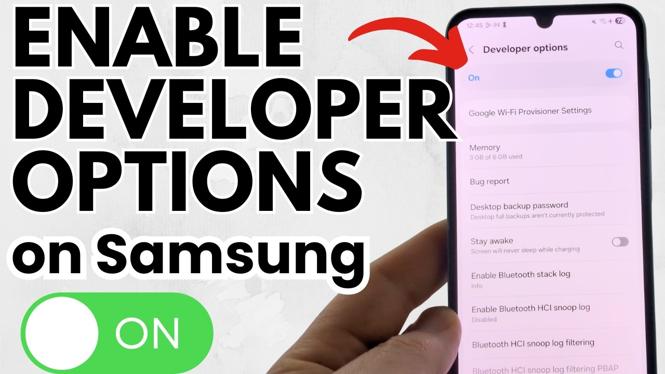
How to Enable Developer Options on Samsung Galaxy Phone
Samsung Galaxy phones are equipped with a myriad of features that enhance user experience. Among these features is the Developer Options menu, which grants users access to advanced settings and configurations. Whether you’re a developer testing out new apps, a tech enthusiast wanting to customize your device, or someone looking to optimize performance—enabling Developer Options can unlock various hidden functionalities such as USB debugging, animation scaling, and more. In this tutorial, we’ll guide you through the straightforward steps to enable Developer Options on your Samsung Galaxy devices, including the latest models like the S25, S24, A series, Z Flip, Z Fold, and more, all running One UI.
Why You Might Be Looking for This Tutorial
Many users might wonder why they should enable Developer Options. Here are a few reasons:
- Access Hidden Features: Developer Options allow you to access advanced features that aren’t available in the regular settings menu, enabling better control over your device.
- Improve Performance: By adjusting animation scales and background process limits, you can optimize your device’s performance.
- USB Debugging: This feature is essential for developers and those wanting to connect their phone to a computer for tasks such as app development or data transfer.
- Custom ROM Installation: For advanced users, enabling Developer Options is often the first step towards customizing their device with new software.
Steps to Enable Developer Options on Samsung Galaxy Phone
Follow these simple steps to enable Developer Options on your Samsung Galaxy phone:
- Open Settings: Swipe down from the top of your screen to access the notification shade, then tap on the gear icon to open the Settings menu.
- About Phone: Scroll down and select “About phone” from the settings menu.
- Software Information: In the About phone section, tap on “Software information.”
- Tap Build Number: Find the “Build number” field and tap it seven times in quick succession. You may be prompted to enter your device’s PIN for security verification.
- Developer Options Enabled: After the seventh tap, you should see a message indicating that Developer Options have been enabled.
- Access Developer Options: Go back to the main Settings menu, and you will now see “Developer options” listed above “About phone.” Tap on it to access the advanced settings.
Video Tutorial
For a visual guide on how to enable Developer Options on your Samsung Galaxy phone, watch the tutorial below:
Conclusion
Enabling Developer Options on your Samsung Galaxy phone can significantly enhance your experience by giving you access to powerful features. Whether you’re looking to improve performance, install custom software, or develop apps, the process is straightforward and does not require extensive technical knowledge. Follow our guide to unlock the full potential of your Samsung device!
More Samsung Phone Tips & Tutorials:
 Subscribe Now! 🙂

Discover more from Gauging Gadgets
Subscribe to get the latest posts sent to your email.