How to Unrestrict Someone on Messenger
In the fast-paced world of digital communication, Facebook Messenger has become one of the primary platforms for messaging friends and family. However, there may be situations where you unintentionally restrict someone, preventing them from reaching you. Whether it was a temporary measure to avoid unwanted messages or an error, unrestricting someone on Messenger can help restore your connection. This tutorial outlines the steps to remove restrictions on Facebook Messenger in 2026, ensuring that your contact can access your messages, see your online status, and interact freely.
Video Tutorial
Why You Might Be Looking for This Tutorial
There are several reasons why someone might want to unrestrict a contact on Messenger. Perhaps the person was restricted due to misunderstandings or conflicts and now you wish to reconcile. Alternatively, you may have forgotten that you restricted someone and they are unable to communicate with you as a result. Unrestricting someone is a simple yet effective way to re-establish connections, enabling them to send you messages directly and see your activity. This straightforward guide is perfect for anyone looking to navigate Messenger’s features effectively and restore communication smoothly.
Steps to Unrestrict Someone on Messenger
- Open the Messenger App: Launch the Messenger app on your device. Ensure you are logged into the correct Facebook account.
- Access Your Profile: Tap on your profile picture located in the top left corner of the screen to access your account settings.
- Select ‘Privacy’: In the settings menu, find and select the ‘Privacy’ option. This will lead you to the privacy settings for your Messenger account.
- Choose ‘Blocked Accounts’: Scroll down until you find the ‘Blocked Accounts’ section. Tap on it to view the list of people you have restricted or blocked on Messenger.
- Find the Restricted Contact: Locate the name of the person you wish to unrestrict from the list. Tap on their name to open their profile settings.
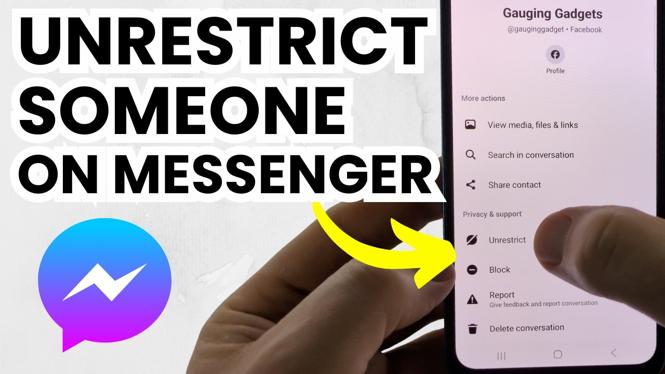
- Unrestrict the Contact: Once you are on their profile settings, look for the option that says ‘Unrestrict’ or ‘Remove Restriction’. Tap on it to confirm your choice.
- Confirmation: You will receive a notification confirming that the restriction has been lifted. The individual will now be able to send you messages directly, see your active status, and view your stories.
Conclusion
Unrestricting someone on Messenger is a straightforward process that can help restore lost communication. Whether for personal reconciliation or simply regaining access to a friend, following the steps outlined above will lead you to successfully unrestrict any contact. Stay connected and enjoy the full benefits of Facebook Messenger by ensuring your preferred contacts can reach you without barriers.
More Messenger Tips & Tutorials:
 Subscribe Now! 🙂

Discover more from Gauging Gadgets
Subscribe to get the latest posts sent to your email.