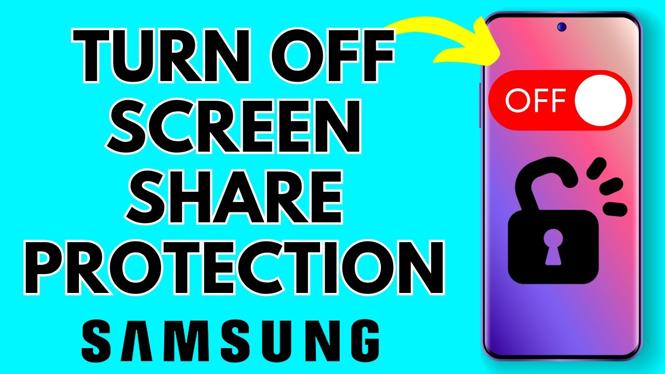
How to Disable Screen Share Protections on Your Samsung Phone
Screen sharing has become an essential feature for many users, whether for business presentations, gaming, or sharing content with friends and family. However, Samsung phones come with built-in screen share protections that can sometimes hinder the experience, causing issues such as black screens or blocked content when trying to mirror your display. In this blog post, we will guide you through the simple steps to disable these protections, allowing you to enjoy seamless screen sharing on your Samsung Galaxy devices. This guide is applicable to popular models including the S25, S24, A series, Z Flip, and Z Fold, running on the latest Android version in 2026.
Why One Might Be Looking for This Tutorial
There are several reasons why you might be interested in disabling screen share protections on your Samsung phone:
- Improved Streaming Experience: If you’re streaming content for an audience, turning off protections can prevent interruptions and ensure that your viewers see what you intend to share.
- Smoother Game Streaming: Gamers often want to share their gameplay live. Disabling these protections can help avoid lagging or interruptions that may occur due to screen sharing restrictions.
- Convenience in Screen Mirroring: Sharing your phone’s screen with other devices can be a hassle if the protections are enabled. This tutorial makes it easy to disable them for a smooth mirroring experience.
Steps to Disable Screen Share Protections on Samsung Phone
- Open Settings: Start by unlocking your Samsung phone and locating the Settings app.
- Navigate to Display Settings: Scroll down and select the Display option from the menu.
- Find Screen Sharing Options: Look for Screen Sharing or Smart View options which may be under a sub-menu or additional feature settings.
- Disable Content Protection: Once inside the screen sharing settings, find the toggle for Content Protection and switch it off. This may also be labeled as screen share restrictions or similar.
- Confirm Changes: After disabling the settings, make sure to confirm any prompts that may appear to apply the changes.
- Test Your Screen Sharing: Try sharing your screen to ensure that the protections have been successfully disabled and that you can mirror without any issues.
Video Tutorial
If you prefer a visual guide, check out this video tutorial that walks you through the steps in detail.
Now you are ready to enjoy uninterrupted screen sharing on your Samsung phone. Whether it’s for presentations, gaming, or just sharing your favorite content, disabling these protections can significantly enhance your experience. Follow these steps whenever you want to alter your screen sharing settings, and you’ll be up and running in no time.
More Samsung Phone Tips & Tutorials:
 Subscribe Now! 🙂

Discover more from Gauging Gadgets
Subscribe to get the latest posts sent to your email.