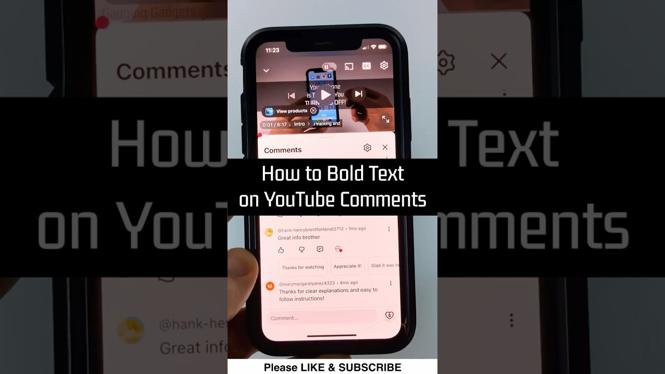
How to Bold Text on YouTube Comments
In the vast world of YouTube, making your comments stand out is essential for capturing attention and conveying your thoughts effectively. Whether you’re engaging with creators, joining discussions, or sharing your opinions, bold text can help highlight critical points in your comments. In this guide, we will walk you through the simple steps to bold text on YouTube comments using various devices, ensuring that your messages have the impact they deserve.
Video Tutorial
Why You Might Be Looking for This Tutorial
As YouTube grows in popularity, so does the need to stand out in comment sections that may often be cluttered with opinions and thoughts. You might be looking to bold text in your comments to emphasize a specific idea, make your comment easier to read, or simply to express your creativity. Knowing how to format your comments using bold text can make your message more engaging for readers, encouraging interaction and discussion. This tutorial will streamline the process and ensure that no matter what device you are using, you can enhance your comments without any technical hurdles.
Steps to Bold Text on YouTube Comments
Follow these steps to learn how to format your comments with bold text from both your mobile device and PC:
Step 1: Access a Text Formatting Tool
To bold text in YouTube comments, you will need to utilize a simple text formatting website like TextTrick.com. This website allows you to format your text easily before copying it to the YouTube comment field.
Step 2: Type Your Comment
On TextTrick.com, type out the comment you want to post on YouTube. This is where you can write freely and think about how you want to format it.
Step 3: Apply Bold Formatting
Once your comment is typed, select the option to bold the text. The tool will provide you with a formatted version of your comment, including any additional styling you choose, such as italics or strikethrough.
Step 4: Copy the Formatted Text
After formatting your text, copy the bold text provided by TextTrick.com. Make sure you copy the entire formatted text to ensure the bold effect carries over.
Step 5: Navigate to YouTube
Visit the YouTube video where you want to post your comment. Scroll down to the comments section and click on the comment input box.
Step 6: Paste Your Comment
In the comment box, paste the bold text from the formatter. Double-check to ensure it appears as you intended before posting.
Step 7: Post Your Comment
Finally, click the ‘Comment’ button to post your comment on YouTube. Your bold text will now be visible to other viewers, enhancing the visibility and impact of your message.
Conclusion
Bold text can make a significant difference in how your comments are perceived on YouTube. By following these steps, you can effectively emphasize your thoughts and engage in discussions with clarity. Embrace text formatting with tools like TextTrick.com, and make your comments pop in any conversation!
More YouTube Tips & Tutorials:
 Subscribe Now! 🙂

Discover more from Gauging Gadgets
Subscribe to get the latest posts sent to your email.