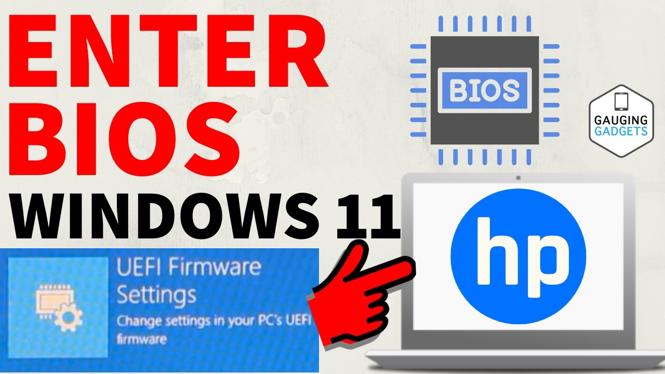
How to Enter BIOS on HP PC or Laptop in Windows 11
If you’re looking to access the BIOS on your HP PC or laptop running Windows 11, you are in the right place. Whether you’re wanting to change your boot sequence, update BIOS settings, or troubleshoot hardware issues, knowing how to enter the BIOS is essential for managing your device effectively. This guide will take you through the steps necessary to access the BIOS setup and UEFI firmware settings on any HP desktop, laptop, or notebook.
Video Tutorial
Why You Might Be Looking for This Tutorial
Accessing the BIOS can seem intimidating if you have never done it before. However, it is a crucial skill that every PC user should acquire. You might be looking for guidance on entering the BIOS for several reasons:
- Changing Boot Order: You may want to boot from a USB drive or an external device, which requires altering the boot sequence.
- Updating BIOS Settings: Configuring memory settings or enabling virtualization features can enhance system performance and compatibility.
- Troubleshooting Hardware Issues: Entering the BIOS allows you to diagnose hardware problems and check system information that is vital for troubleshooting.
- Overclocking: If you’re into gaming or performance tuning, accessing BIOS can help you modify settings for better performance.
Steps to Enter BIOS on HP PC or Laptop in Windows 11
- Shut Down Your HP Device: Start by completely shutting down your HP PC or laptop.
- Power On and Access BIOS:
- If you are using a desktop, turn on the power and repeatedly tap the Esc key as soon as you see the HP logo.
- For laptops, turn on the device and start tapping F10 key immediately until you enter the BIOS setup utility.
- Using Windows 11 Settings: Alternatively, you can enter BIOS through Windows 11:
- Click on the Start menu and select Settings.
- Navigate to System and then to Recovery.
- Under the Advanced startup section, click on Restart now.
- Select Use a device, then select your BIOS from the list of options.
- Navigate BIOS Menu: Once inside the BIOS, use the arrow keys to navigate through different options and settings. Make any changes as necessary, based on what you want to achieve.
- Save and Exit: After making your desired changes, always remember to save before exiting. Look for the option that says Save Changes and Exit, usually by pressing F10.
With these steps, you can easily access the BIOS on your HP PC or laptop running Windows 11 and make the necessary configurations with confidence. Don’t hesitate to refer to the accompanying video tutorial for a step-by-step visual guide!
More Windows 11 Tips & Tutorials:
 Subscribe Now! 🙂

Discover more from Gauging Gadgets
Subscribe to get the latest posts sent to your email.