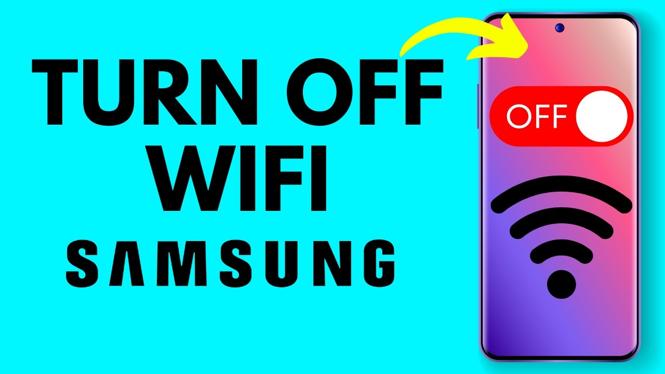
How to Turn OFF WiFi on Samsung Phone
In this digital age, managing your smartphone settings is essential for maintaining privacy and optimizing performance. Disabling WiFi on your Samsung phone can be important for various reasons, such as saving battery life, preventing automatic connections, and ensuring that your device is not connected to any public or unsecured networks. Whether you own a Samsung Galaxy S25, S24, A series, Z Flip, or Z Fold, this tutorial will guide you through the necessary steps to turn off WiFi effectively.
Video Tutorial
Why You Might Be Looking for This Tutorial
Many users find themselves wanting to disable WiFi for different purposes. Perhaps you are in an area with a weak WiFi signal and want to switch to mobile data. Maybe you are concerned about security and want to prevent your phone from connecting automatically to any available networks. Or you may simply want to conserve battery life while traveling. No matter your reason, knowing how to turn off WiFi on your Samsung phone is a valuable skill.
Steps to Turn OFF WiFi on Samsung Phone
Method 1: Using the Quick Settings Panel
- Swipe down from the top of your screen to open the notification panel.
- Look for the WiFi icon in the Quick Settings menu.
- Tap on the WiFi icon; it will turn gray, indicating that WiFi is disabled.
- Close the Quick Settings panel.
Method 2: Through the Full Settings Menu
- Open the Settings app on your Samsung phone.
- Scroll down and select Connections.
- Tap on Wi-Fi.
- Toggle the switch at the top of the screen to turn WiFi off.
- Your Samsung phone will display a message confirming that WiFi is off.
Conclusion
Disabling WiFi on your Samsung phone is a simple process that can bring various benefits, including enhanced security and longer battery life. With these two methods, you can quickly turn off your WiFi connection whenever you need to. Remember, staying in control of your device’s settings helps you use your smartphone more efficiently.
More Samsung Phone Tips & Tutorials:
 Subscribe Now! 🙂

Discover more from Gauging Gadgets
Subscribe to get the latest posts sent to your email.