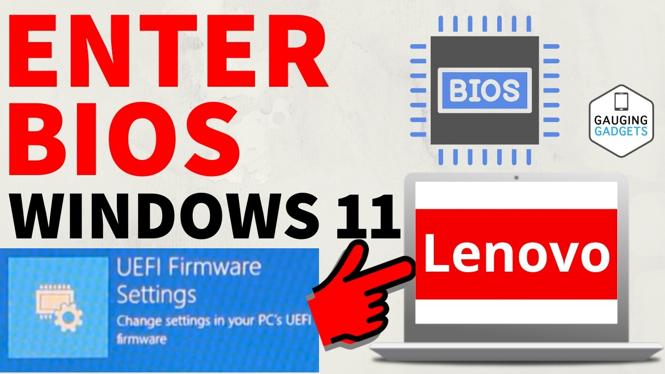
How to Enter BIOS on Lenovo PC or Laptop in Windows 11 & Windows 10
Accessing the BIOS (Basic Input/Output System) on your Lenovo PC or laptop is essential for tasks such as changing the boot order, enabling virtualization, or tweaking system configurations. Whether you’re troubleshooting startup issues or customizing your hardware settings, knowing how to enter the BIOS can empower you to make the necessary adjustments with ease. This tutorial will guide you through the steps to access the BIOS setup utility using both the boot key method and Windows settings.
Video Tutorial
Why You Might Be Looking for This Tutorial
Users may seek out this tutorial for several reasons:
- Need to troubleshoot startup problems or other hardware issues.
- Wishing to change the boot sequence for installation of new operating systems or recovery tools.
- Wanting to enable hardware features such as virtualization for better performance in applications.
- Desiring customization of system configurations to optimize performance or energy efficiency.
Steps to Enter BIOS on Lenovo PC or Laptop
Method 1: Using the Boot Key
- Turn off your Lenovo PC or laptop completely.
- Turn it back on and immediately start pressing the appropriate key to enter BIOS. For most Lenovo devices, this key is F1 or F2. In some models, you might need to use the Enter key or the Delete key.
- If done correctly, you should see the BIOS setup utility. From here, you can navigate through the options using your keyboard.
Method 2: Using Windows Settings
- Open Settings by pressing Windows + I on your keyboard.
- Go to Update & Security.
- Select Recovery from the left sidebar.
- Under the Advanced startup section, click on Restart now. Your PC will restart and show a menu.
- Select Troubleshoot, then Advanced options, and finally UEFI Firmware Settings.
- Click on Restart to enter the BIOS setup utility.
Conclusion
Accessing the BIOS on your Lenovo PC or laptop is a straightforward process that can provide many benefits for troubleshooting and customization. Whether you use the boot key method or go through Windows settings, you can easily navigate and adjust the necessary configurations to meet your needs. By following the steps outlined in this tutorial, you’ll be well-equipped to enter BIOS and make the changes you desire.
More Windows 11 Tips & Tutorials:
 Subscribe Now! 🙂

Discover more from Gauging Gadgets
Subscribe to get the latest posts sent to your email.