How to Install Chrome Browser App on iPhone
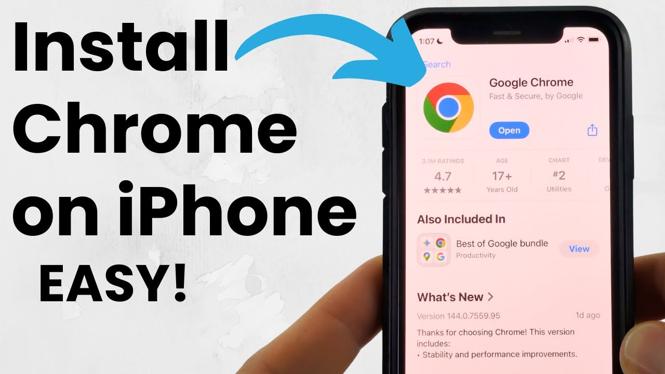
If you’re looking to enhance your browsing experience on your iPhone, installing the Google Chrome browser app is a great choice. Chrome offers seamless syncing of bookmarks, passwords, and history across all devices, ensuring that you have access to your favorite sites no matter where you are. In this tutorial, we will guide you through the simple steps required to download and set up Chrome on your iOS device.
Video Tutorial
Why You Might Be Looking for This Tutorial
Many users seek to install Chrome on their iPhones for several reasons. First, if you already use Chrome on other devices, installing it on your iPhone allows for easy syncing of your bookmarks and saved passwords. Second, you might find the user interface of Chrome to be more intuitive and convenient compared to Apple’s default browser, Safari. Lastly, Chrome offers unique features like voice search and a built-in ad blocker that can improve your overall browsing experience.
Steps to Install Chrome on Your iPhone
Step 1: Open the App Store
Begin by locating the App Store icon on your iPhone home screen. Tap to open it.
Step 2: Search for Google Chrome
In the App Store, find the search bar at the bottom of the screen. Type “Google Chrome” and tap the search button.
Step 3: Download the App
Once you find Google Chrome in the search results, tap the “Get” button next to the app icon. If prompted, authenticate your download using your Apple ID, Face ID, or Touch ID.
Step 4: Open Chrome
After the installation is complete, locate the Google Chrome icon on your home screen and tap on it to open.
Step 5: Set Chrome as Your Default Browser (Optional)
If you wish to make Chrome your default browser, go to the “Settings” app on your iPhone. Scroll down and find “Chrome” in the list of apps. Tap on it, then select “Default Browser App” and choose “Chrome.”
Step 6: Sign In
If you want to sync your bookmarks and saved passwords, sign in to your Google account. Tap on the three dots at the bottom right corner of the Chrome app, then select “Settings” and tap “Sign in to Chrome.”
Conclusion
Installing the Chrome browser app on your iPhone is a straightforward process that can significantly enhance your mobile browsing experience. With this simple guide, you should be able to download, set up, and customize Chrome according to your preferences. Enjoy exploring the web with all the features Chrome has to offer!
More iPhone Tutorials:
 Subscribe Now! 🙂

Discover more from Gauging Gadgets
Subscribe to get the latest posts sent to your email.