How to Install Spotify App on iPhone
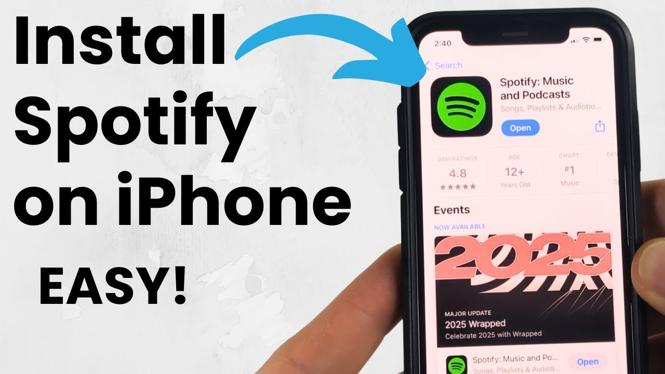
In today’s digital age, music streaming apps like Spotify have transformed the way we enjoy music. Whether you’re a casual listener or a dedicated music fan, having Spotify on your iPhone can provide instant access to millions of songs, podcasts, and curated playlists. In this blog post, we will guide you through the process of installing the Spotify app on your iPhone, ensuring that you can start streaming your favorite tunes in no time.
Video Tutorial
Why You Might Be Looking for This Tutorial
There are several reasons you might be searching for how to install the Spotify app on your iPhone:
- You want to enjoy your favorite music and podcasts anytime, anywhere.
- You are new to the iPhone ecosystem and need guidance on downloading apps.
- You may have recently switched from another music service and want to transition to Spotify.
- You heard friends talk about Spotify’s extensive library and would like to experience it for yourself.
Steps to Install the Spotify App on Your iPhone
Follow these simple steps to install Spotify on your iPhone.
Step 1: Open the App Store
Unlock your iPhone and locate the App Store icon. Tap on it to open the App Store, where you can download various applications.
Step 2: Search for Spotify
Once you are in the App Store, tap the search icon located at the bottom right corner of the screen. Type “Spotify” into the search bar and press search.
Step 3: Download the App
In the search results, you will find the Spotify app listed. Tap on the “Get” button (or the cloud icon if you have previously downloaded it) to initiate the download. You may need to enter your Apple ID password or use Face ID/Touch ID to confirm the download.
Step 4: Open Spotify
Once the download is complete, the Spotify app icon will appear on your home screen. Tap the icon to open the app.
Step 5: Sign In or Create an Account
If you already have a Spotify account, you can log in using your existing credentials. If not, tap on “Sign Up” to create a new account. You may choose a free account with ads or opt for a premium subscription for an ad-free experience.
Step 6: Start Streaming
After logging in or creating an account, you can begin exploring Spotify’s vast library. Search for your favorite songs, create playlists, or discover new music tailored to your preferences.
Conclusion
Installing the Spotify app on your iPhone is a straightforward process, and following these steps will have you enjoying music in minutes. With Spotify, you’ll have access to a world of audio entertainment right at your fingertips. Enjoy your listening experience!
More iPhone Tutorials:
 Subscribe Now! 🙂

Discover more from Gauging Gadgets
Subscribe to get the latest posts sent to your email.