How to Install Discord App on iPhone
Installing the Discord app on your iPhone is a straightforward process that opens up a world of communication and community engagement. With millions of users around the globe, Discord provides a platform for chatting with friends, participating in various communities, and collaborating on projects. This app is not only popular among gamers but also among anyone who wants to connect with like-minded individuals. In this post, we will walk you through the steps to download, install, and set up Discord on your iOS device.
Video Tutorial
Why You Might Be Looking for This Tutorial
You may be interested in this tutorial for several reasons. Perhaps you are new to Discord and want to connect with friends or join gaming communities. You might also be a seasoned user looking for guidance on improving your mobile experience. Whatever your reason, getting the Discord app on your iPhone is an essential step for seamless communication and community interaction.
Steps to Install Discord on Your iPhone
Step 1: Open the App Store
Unlock your iPhone and navigate to the App Store. The App Store icon is usually located on your home screen and is represented by a blue icon with a white ‘A’.
Step 2: Search for Discord
Once in the App Store, use the search bar at the bottom of the screen. Type “Discord” and hit the search button. You should see the official Discord app in the search results.
Step 3: Download the App
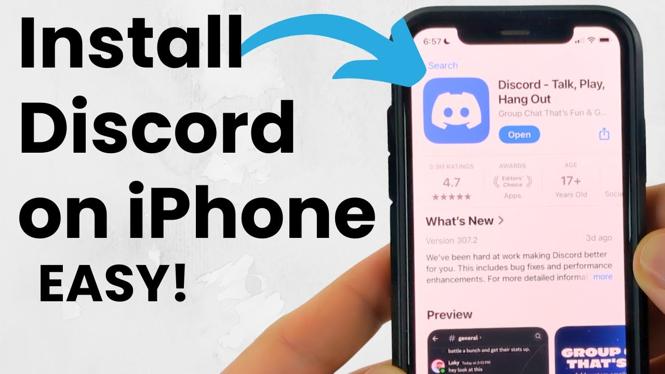
Tap the “Get” button next to the Discord app. If prompted, enter your Apple ID password or use Face ID/Touch ID to confirm the download. The app will begin downloading and installing on your device.
Step 4: Open Discord
After the installation is complete, you can either tap “Open” directly from the App Store or find the Discord app icon on your home screen. Tap it to launch the app.
Step 5: Sign In or Create an Account
If you already have a Discord account, simply enter your login credentials. If you’re new to Discord, tap on “Register” to create a new account. Follow the on-screen instructions, which will require you to enter your email address, create a username, and choose a password.
Step 6: Set Up Your Profile
Once logged in, you can customize your profile by adding a profile picture, setting your status, and joining your first server. Take a few moments to explore the app and familiarize yourself with its features.
Conclusion
Now that you’ve successfully installed Discord on your iPhone, you can enjoy chatting with friends and engaging with communities. Don’t hesitate to explore the various features the app offers, from voice channels to text chats. With this guide, you are well on your way to becoming an active member of the Discord community.
More iPhone Tutorials:
 Subscribe Now! 🙂

Discover more from Gauging Gadgets
Subscribe to get the latest posts sent to your email.