How to Install Xbox Game Bar on Windows 11
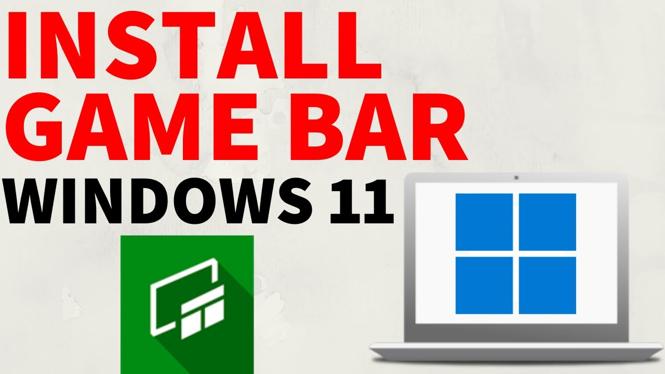
The Xbox Game Bar is a powerful tool for gamers on Windows 11, providing essential features like screen recording, performance monitoring, and quick access to gaming settings. If you’re looking to enhance your gaming experience, it’s crucial to have this feature installed on your PC or laptop. This blog post will guide you through the steps to install the Xbox Game Bar and troubleshoot any potential issues along the way.
Video Tutorial
Why You Might Be Looking for This Tutorial
There are several reasons you might want to install or reinstall the Xbox Game Bar on your Windows 11 device:
- Enhanced Gaming Experience: The Xbox Game Bar provides tools for capturing gameplay, monitoring your system performance, and accessing Xbox features directly while gaming.
- Reinstallation Required: Sometimes, users may accidentally remove the Xbox Game Bar or encounter issues that lead to its disappearance.
- Troubleshooting Problems: If the Xbox Game Bar is not appearing in the Microsoft Store, knowing how to locate and reinstall it can resolve numerous issues.
Steps to Install Xbox Game Bar on Windows 11
- Open Settings: Click on the Start menu and select the gear icon to open the Settings app.
- Go to Gaming: In the Settings, find and select the ‘Gaming’ option from the sidebar.
- Select Xbox Game Bar: Click on ‘Xbox Game Bar’ from the gaming settings. Ensure that the toggle is set to ‘On’ to enable the Game Bar.
- Download from Microsoft Store (if necessary): If you cannot find the Xbox Game Bar, go to the Microsoft Store, search for ‘Xbox Game Bar,’ and click ‘Install.’
- Restart Your PC: After installation, restart your computer to finalize changes.
- Launch Xbox Game Bar: You can now use the shortcut ‘Win + G’ to open the Xbox Game Bar and start utilizing its features.
Troubleshooting Tips
If you encounter issues where the Xbox Game Bar does not appear in the Microsoft Store or does not work after installation, consider these troubleshooting tips:
- Check for Windows Updates: Ensure your Windows 11 is up to date, as updates can resolve compatibility issues.
- Reset the Xbox Game Bar: In the Settings app under ‘Apps,’ find the Xbox Game Bar, and select ‘Advanced Options’ to reset it.
- Check Privacy Settings: Make sure your privacy settings allow the Game Bar to function correctly.
With these steps, you’ll be able to successfully install and utilize the Xbox Game Bar on your Windows 11 device, enhancing your gaming productivity and enjoyment. If you have any questions or run into issues during installation, feel free to leave us a comment below!
More Windows 11 Tips & Tutorials:
 Subscribe Now! 🙂

Discover more from Gauging Gadgets
Subscribe to get the latest posts sent to your email.