How to Split Video on iPhone: A Step-by-Step Guide
If you’re looking to create polished videos on your iPhone, knowing how to split video clips is an essential skill. Whether you’re trying to cut out a mistake, remove unnecessary content, or simply shorten a video for sharing, the iMovie app is a powerful tool that makes this process seamless. In this guide, we’ll walk you through the steps to split a video on your iPhone and improve your video editing skills.
Video Tutorial
Why You Might Be Looking for This Tutorial
Many users turn to video editing tools to enhance their content for social media, professional presentations, or personal projects. Here are some common reasons why you might want to split a video on your iPhone:
- Removing Errors: If you made a mistake while recording, splitting your video allows you to easily cut out those blemishes.
- Focusing on Key Moments: You may want to highlight specific segments of your video, making it more engaging for your audience.
- Trimming Length: Reducing the overall length of a video can help retain viewer attention and make for a more concise delivery.
- Enhancing Storytelling: Being able to cut becomes essential when you’re telling a story and want to ensure a smooth flow.
Steps to Split Video on iPhone Using iMovie
Here’s a straightforward process to split your video using the iMovie app on your iPhone:
- Open iMovie: Launch the iMovie app on your iPhone. If you don’t have it, download it from the App Store.
- Create a New Project: Tap on the “+” button to start a new project. Choose “Movie” from the options available.
- Select Your Video: Browse through your video library and select the video you want to edit.
- Add Your Video to the Timeline: After selecting, tap “Create Movie” to add it to the editing timeline.
- Locate the Point to Split: Play the video and pause it at the point where you want to make the split.
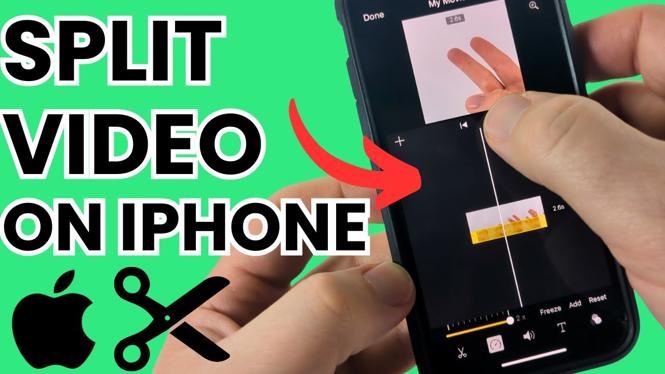
- Split the Clip: Tap on the video clip in the timeline, and a menu will appear. Select the “Actions” button (scissors icon) and then choose “Split.” This will divide your clip into two segments.
- Remove Unwanted Sections: If you want to cut out the middle section, tap on the segment you wish to remove and select “Delete.”
- Save Your Video: Once you’re satisfied with the edits, tap “Done” in the top left corner, then tap the “Share” button to save or share your trimmed video.
Conclusion
Splitting a video on your iPhone using iMovie is a simple yet effective way to enhance your video content. By following the steps outlined in this guide, you can easily cut out unwanted portions and keep your videos engaging. If you have any questions or need further assistance, feel free to leave a comment below. Happy editing!
More iPhone Tips & Tutorials:
 Subscribe Now! 🙂

Discover more from Gauging Gadgets
Subscribe to get the latest posts sent to your email.