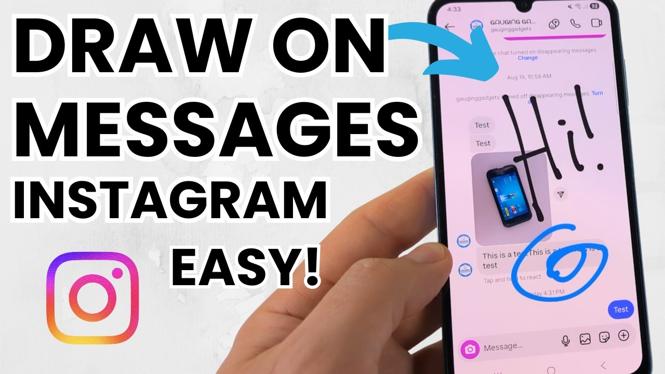
How to Draw on Instagram Messages
In a world where visual communication is becoming increasingly important, being able to express yourself creatively on platforms like Instagram can enhance your messaging experience. Drawing on Instagram messages lets you add a personal touch to your conversations with friends and followers. Whether you’re sharing a fun doodle, illustrating a point, or simply making your messages more engaging, this feature helps brighten up the chat interface.
Video Tutorial
Why You Might Be Looking for This Tutorial
As social media continues to evolve, users seek new ways to communicate effectively. You might be looking for this tutorial if:
- You want to add a personal touch to your Instagram messages.
- You are interested in using creative tools to express your thoughts visually.
- You want to learn how to make your messages stand out in a crowded inbox.
- You are exploring new features on Instagram and want to enhance your messaging skills.
Steps to Draw on Instagram Messages
Follow these simple steps to start drawing on Instagram messages:
- Open Instagram: Launch the Instagram app on your iPhone, Android, or Samsung device.
- Go to Direct Messages: Tap on the paper airplane icon in the top right corner of your feed to access your messages.
- Select a Conversation: Choose an existing chat or start a new message with a friend.
- Tap on the Text Input Field: Once in the conversation, click on the text box where you usually type your messages.
- Access the Doodle Tool: You’ll see a pen icon or a drawing tool option. Tap on it to enter the drawing mode.
- Start Drawing: Use your finger or stylus to create drawings, doodles, or designs directly on the message screen.
- Send Your Doodle: After you finish your drawing, tap the send button to share it in the chat.
Now that you know how to draw on Instagram messages, you can explore your creativity and make your conversations more lively and engaging. Whether you’re sharing a laugh with friends or illustrating your ideas, this feature adds a unique touch to your Instagram experience.
More Instagram Tips & Tutorials:
 Subscribe Now! 🙂

Discover more from Gauging Gadgets
Subscribe to get the latest posts sent to your email.