How to Turn Off Professional Account on Instagram
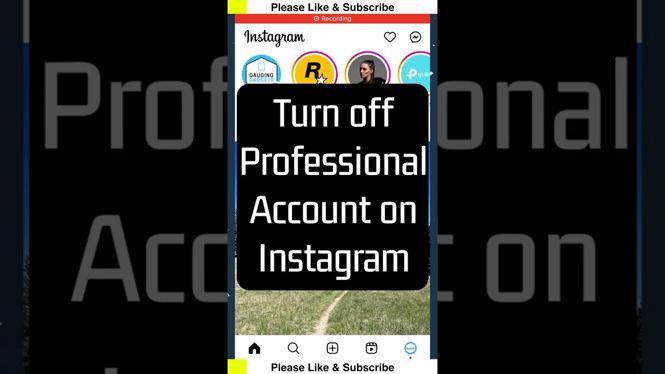
Are you feeling overwhelmed by your professional Instagram account? Whether you’re a business owner, influencer, or just someone experimenting with the platform, there may come a time when you decide to revert back to a personal account. Turning off your professional account on Instagram can simplify your experience and help you regain control over your profile. In this blog post, we’ll walk you through the straightforward steps required to switch back to a personal account and provide some insights on why you might want to do this.
Video Tutorial
Why You Might Be Looking for This Tutorial
There are a number of reasons you might be considering switching back to a personal account on Instagram:
- Simplicity: A personal account offers a more straightforward user experience without the added features and analytics that come with a professional account.
- Privacy: If you’re looking to share content with friends and family rather than followers or customers, a personal account might suit your needs better.
- Less Pressure: A professional account can come with pressures to constantly post high-quality content and engage with followers; a personal account allows you to enjoy Instagram more casually.
- Content Focus: Redirecting your focus from marketing to genuine sharing can enhance your experience on the platform.
Steps to Turn Off Professional Account on Instagram
Follow the steps below to easily turn off your professional account on Instagram:
- Open the Instagram app: Launch the Instagram app on your mobile device and log into your account.
- Go to your profile: Tap on your profile icon at the bottom right corner of the screen to access your account.
- Access settings: Tap on the three horizontal lines (hamburger icon) at the top right corner of your profile. From the menu, select “Settings.”
- Account section: In the Settings, look for the “Account” option and tap on it.
- Switch account type: Scroll down and find “Switch to Personal Account” or “Switch to Professional Account” option, depending on your current setting. Confirm your choice.
- Confirmation: Instagram will ask you to confirm your decision. Follow the prompts to complete the switch.
- Explore your account: Once you’ve switched back, take a moment to explore your personal account settings and adjust them to your preference.
By following these easy steps, you can successfully turn off your professional account on Instagram and return to a more personal experience. If you encounter any issues during the process, don’t hesitate to leave your questions in the comments below.
More Instagram Tutorials:
 Subscribe Now! 🙂

Discover more from Gauging Gadgets
Subscribe to get the latest posts sent to your email.