How to Scan QR Code on iPhone
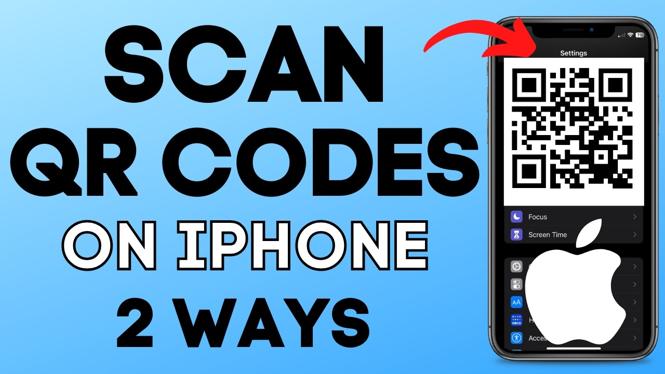
In the digital age, QR codes have become ubiquitous, simplifying the way we share and access information. Whether you’re at a restaurant, an event, or just exploring the web, knowing how to scan QR codes can greatly enhance your experience. This guide will teach you how to scan QR codes on your iPhone effectively. We’ll explore two simple methods: using the built-in camera and utilizing QR Code Gadget for scanning QR codes found in documents like PDFs, emails, or websites. By the end of this tutorial, you’ll be proficient in scanning any QR code with your iPhone.
Video Tutorial
Why You Might Be Looking for This Tutorial
There are several reasons why you might want to learn how to scan QR codes on your iPhone:
- Convenience: Scanning QR codes can save time and streamline processes, especially when accessing menus, tickets, or information quickly.
- Accessing Information: QR codes often link to relevant resources like websites, contact information, or promotional offers, enhancing your shopping or dining experience.
- Staying Updated: As technology evolves, learning new techniques and tools helps you stay ahead and make the most of your iPhone’s capabilities.
- Versatility: Knowing how to scan QR codes not only benefits you in everyday situations but also opens up new avenues for interactive learning and connectivity.
How to Scan QR Codes on iPhone
Method 1: Using the Camera
- Open the Camera app on your iPhone.
- Point your camera at the QR code you wish to scan. Make sure the code is well-framed within the camera’s viewfinder.
- Your iPhone will automatically recognize the QR code and display a notification at the top of the screen.
- Tap on the notification to access the content linked to the QR code.
Method 2: Scanning QR Codes Using QR Code Gadget
- Open the QRCodeGadget.com in your browser.
- Select the option to scan a code from within the page.
- You can upload an image of a QR code in a supported format (like a PDF or an email screenshot) or paste the content from your iPhone.
- The tool will decode the QR code, allowing you to access the information.
Conclusion
Scanning QR codes on your iPhone is a straightforward process, whether you use the built-in camera or a third-party tool like QR Code Gadget. With this knowledge, you can quickly access a wealth of information and stay connected in today’s tech-driven world. If you encounter any issues or have questions while scanning QR codes, feel free to leave a comment below.
More iPhone Tips & Tutorials:
 Subscribe Now! 🙂

Discover more from Gauging Gadgets
Subscribe to get the latest posts sent to your email.