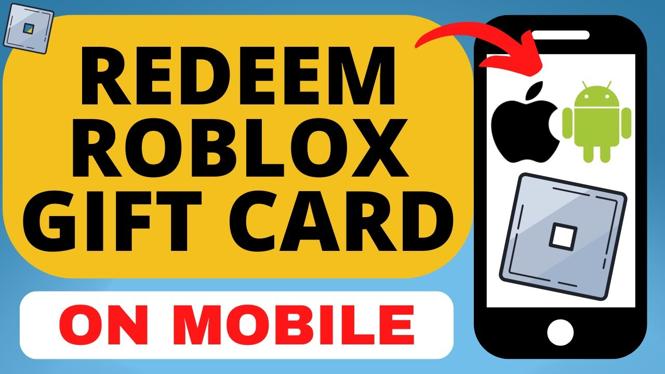
How to Redeem Roblox Gift Card on Mobile
Roblox continues to be a popular platform where millions of players engage in creating and playing games. One of the easiest ways to enhance your gaming experience is by purchasing Robux or memberships using gift cards. If you’ve received a Roblox gift card and want to redeem it via your mobile device, you’re in the right place. In this tutorial, we will guide you step-by-step on how to enter your Roblox gift card code using mobile devices including iPhone, Android, and Samsung.
Video Tutorial
Why You Might Be Looking for This Tutorial
Many players prefer to redeem their Roblox gift cards on mobile for convenience. With the ever-growing popularity of mobile gaming, being able to purchase additional credits or items while on-the-go is essential. Whether you are at home, traveling, or just away from your computer, redeeming gift cards through your mobile device allows you to unlock additional Robux, access memberships, or buy in-game items quickly and easily. This tutorial will help you navigate the redemption process seamlessly.
Steps to Redeem Your Roblox Gift Card on Mobile
1. Open the Roblox App or Browser
Start by launching the Roblox app on your mobile device or your preferred mobile browser. If you don’t have the app installed, you can download it from the App Store or Google Play Store.
2. Log Into Your Account
If you aren’t already logged in, enter your Roblox username and password to access your account. Make sure you are using the correct account associated with your gift card.
3. Navigate to the Gift Card Redemption Section
In the app, tap on the three dots at the bottom-right corner to open the menu, then tap on “Settings.” From there, look for the option that says “Gift Cards” or “Redeem Code.” If you are using a browser, scroll down to the footer of the Roblox homepage and click on “Redeem Roblox Card.”
4. Enter Your Gift Card Code
Carefully enter the gift card code found on your card. Make sure to double-check for any mistakes to avoid redemption errors. After entering the code, click on the “Redeem” button.
5. Confirm Your Redemption
You should see a confirmation message indicating that the gift card has been successfully redeemed. The credits will be added to your account, and you can now use them to purchase Robux, memberships, or items within Roblox.
Conclusion
Redeeming a Roblox gift card on mobile is a straightforward process that allows you to enhance your gaming experience no matter where you are. By following the steps outlined in this guide, you’ll be able to add Robux or memberships to your account quickly and easily. For a visual demonstration, don’t forget to check out our video tutorial above. Happy gaming!
More Roblox Tips & Tutorials:
 Subscribe Now! 🙂

Discover more from Gauging Gadgets
Subscribe to get the latest posts sent to your email.