How to Install Microsoft Outlook App on iPhone
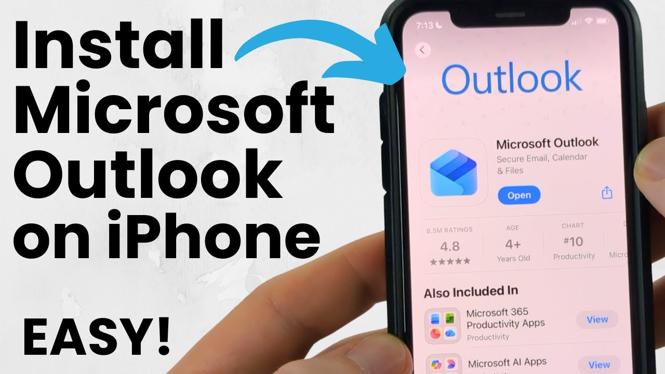
If you are looking to streamline your email management on your iPhone, installing the Microsoft Outlook app is a great choice. Outlook not only allows you to access your emails but also integrates your calendar and contacts into one convenient platform. In this blog post, we will provide you with a step-by-step guide on how to quickly and easily install the Microsoft Outlook app on your iPhone.
Video Tutorial
Why You Might Be Looking for This Tutorial
Many users seek to enhance their email experience on mobile devices, especially iPhone users who might find the default email application insufficient for their needs. The Microsoft Outlook app offers a powerful feature set that includes a focused inbox, calendar synchronization, contact management, and support for multiple accounts, all tailored for effective communication. Whether you are a professional needing to manage business emails, or an individual wanting a better organization for personal messages, knowing how to install and set up Outlook can significantly improve your productivity.
Steps to Install Microsoft Outlook on Your iPhone
Step 1: Open the App Store
On your iPhone, locate and tap the App Store icon to launch the application.
Step 2: Search for Microsoft Outlook
Once in the App Store, tap on the search bar at the bottom of the screen, and type in Microsoft Outlook. Press the search button to find the app.
Step 3: Download the App
In the search results, find the Microsoft Outlook app. Tap the Get button (or the cloud icon if you’ve downloaded it before) to start the installation process. You may need to enter your Apple ID password or use Face ID/Touch ID to authorize the download.
Step 4: Open Microsoft Outlook
After the app has downloaded, tap Open from the App Store, or find the Outlook icon on your home screen and tap to open it.
Step 5: Set Up Your Email Account
Upon opening the app for the first time, you will be prompted to sign in. Enter your email address and password for the account you wish to set up. Follow any additional prompts to configure your settings, including notifications and permissions.
Step 6: Customize Your Settings
Once you’re logged in, explore the settings to customize how Outlook works for you. You can adjust features such as sync settings for your calendar, contacts, and notifications to get the most out of your app.
Conclusion
Installing the Microsoft Outlook app on your iPhone is a straightforward process that can greatly enhance your email management experience. By following these simple steps, you will have all your emails, calendar events, and contacts accessible in one powerful app. With improved organization and productivity at your fingertips, Microsoft Outlook is a fantastic tool for anyone looking to streamline their digital communication.
More iPhone Tutorials:
 Subscribe Now! 🙂

Discover more from Gauging Gadgets
Subscribe to get the latest posts sent to your email.